Sign in
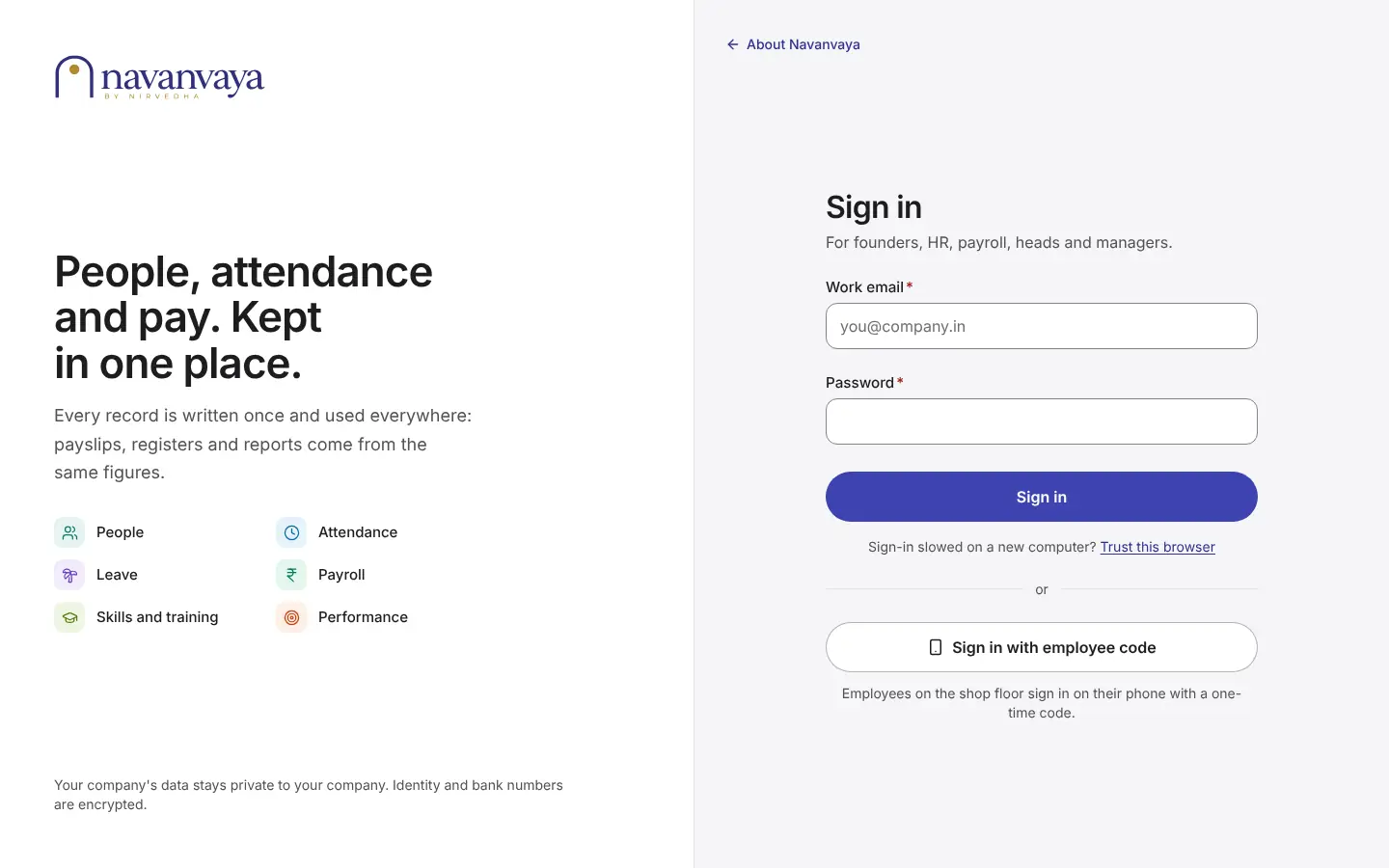
Sign in as staff
- Open the Navanvaya address HR gave you.
- Type your Work email and Password.
- Press Sign in. Your Home page opens.
New computer and sign-in is slow? Use Trust this browser: a link comes to your email.
User guide
Step by step, on the real screens. Founders, HR and payroll work on a laptop; supervisors and employees on their phone.
Demo data. Every name, code and figure on these screens is made up, from the demo company "G-Tek Corporation (demo)".
Staff screens on a laptop are in English. Phone screens are in your language.
Phone tasks play on their own: a ring shows where to tap. On laptop tasks, click a step to light up that part of the screen.
Chapter 1 LaptopPhone
Staff sign in on a laptop with a work email and password. Employees sign in on their phone with their employee code.
Sign in
New computer and sign-in is slow? Use Trust this browser: a link comes to your email.
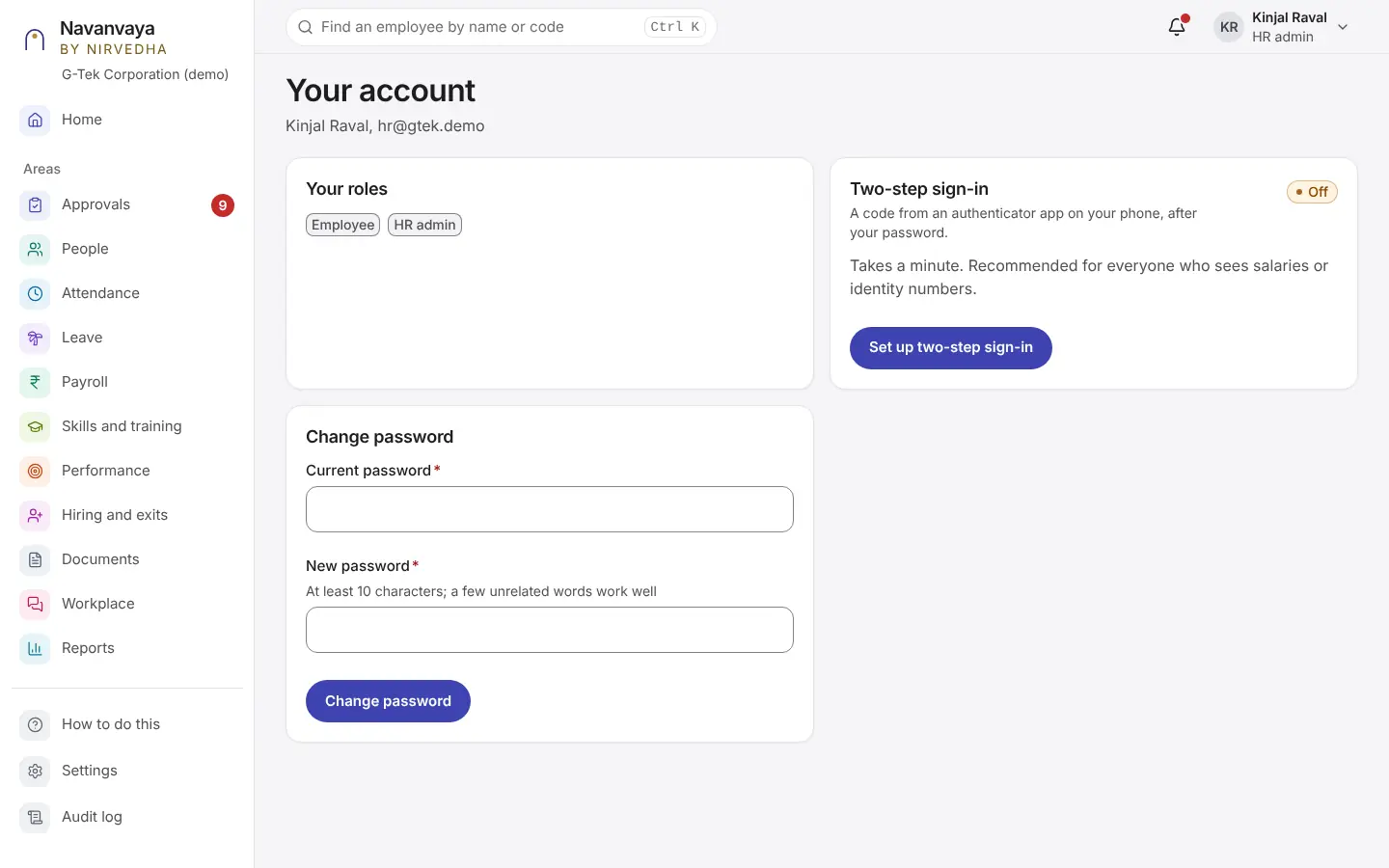
Your account
For everyone who sees salaries. After the password, the app asks for a code from an app on your phone.
You can change your password on the same page: at least 10 characters.
Sign in
Using a shared phone or kiosk? Use the link below the printed-code link.
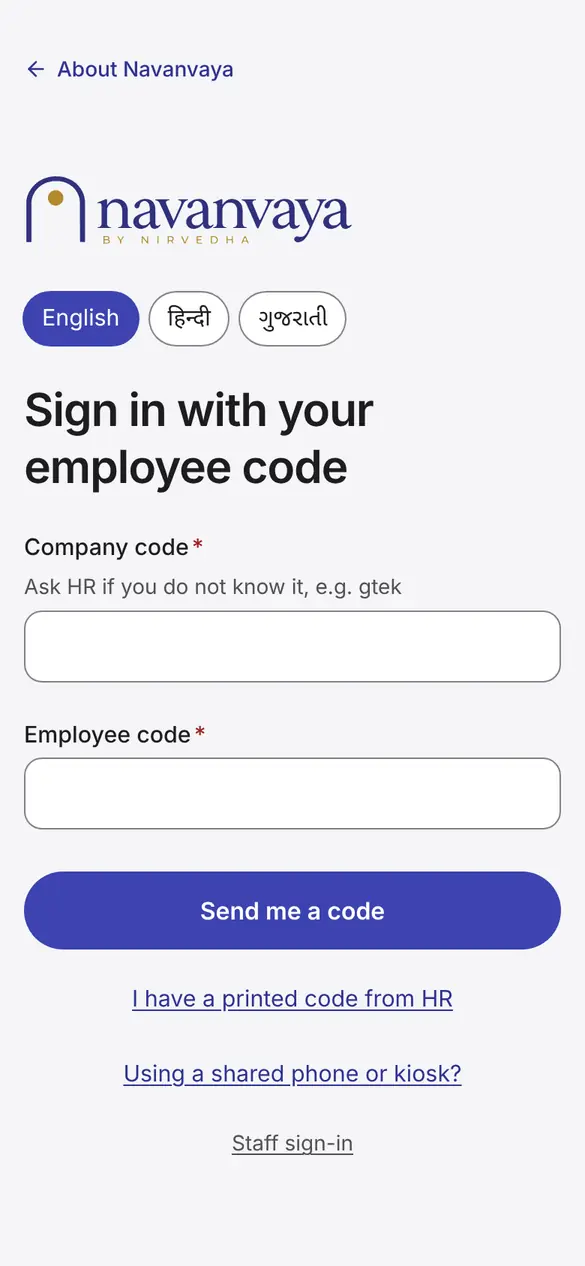
1 of 6Pick your language at the top: English, हिन्दी or ગુજરાતી.
Language
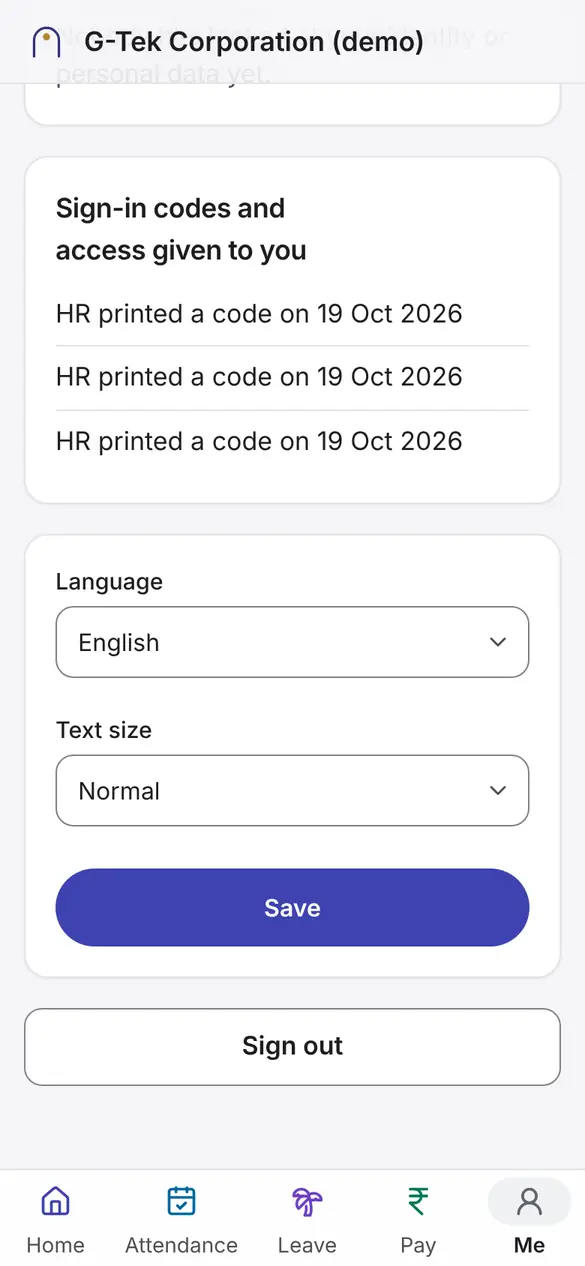
1 of 3Tap Me in the bottom bar.
Chapter 2 Laptop
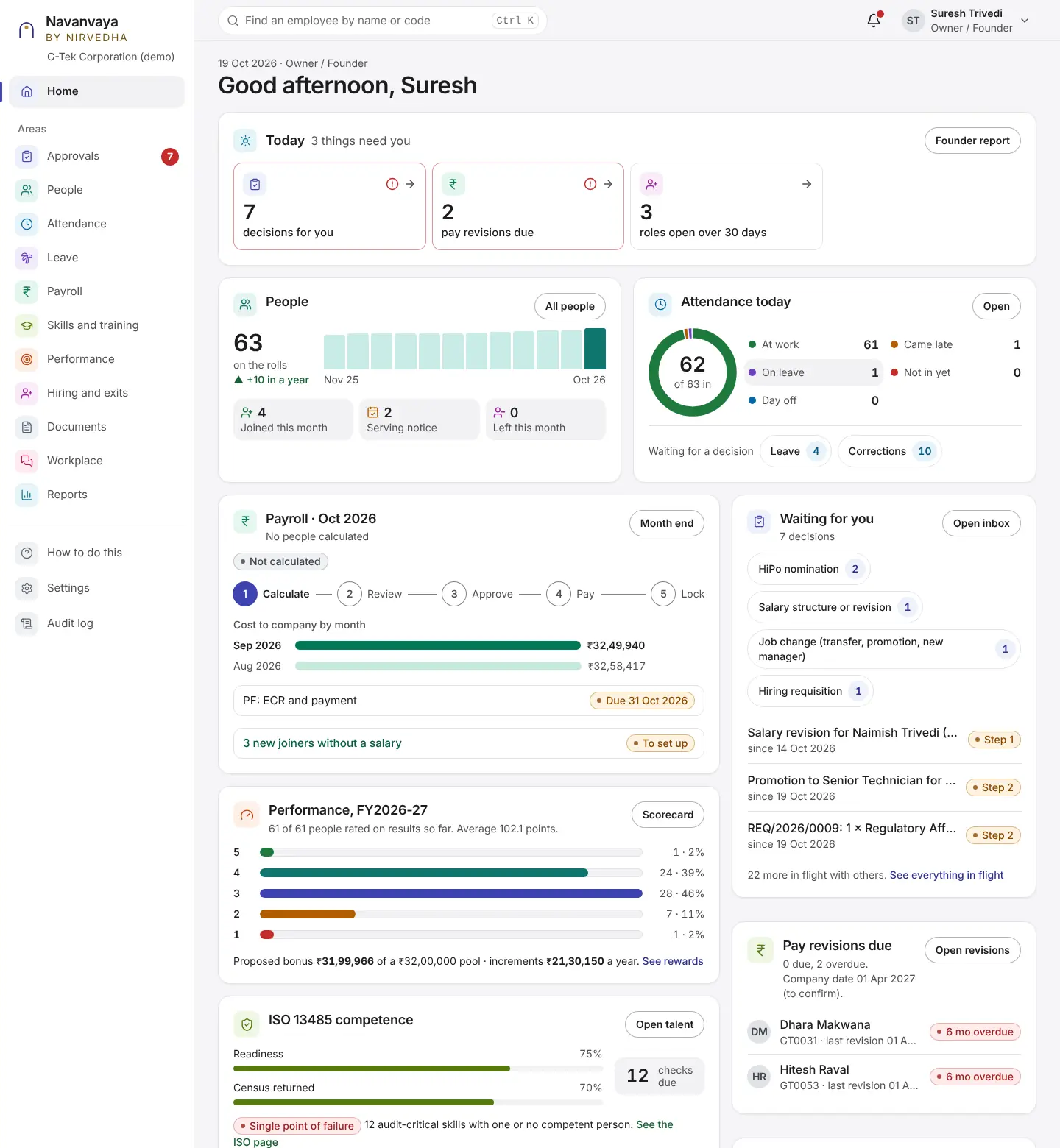
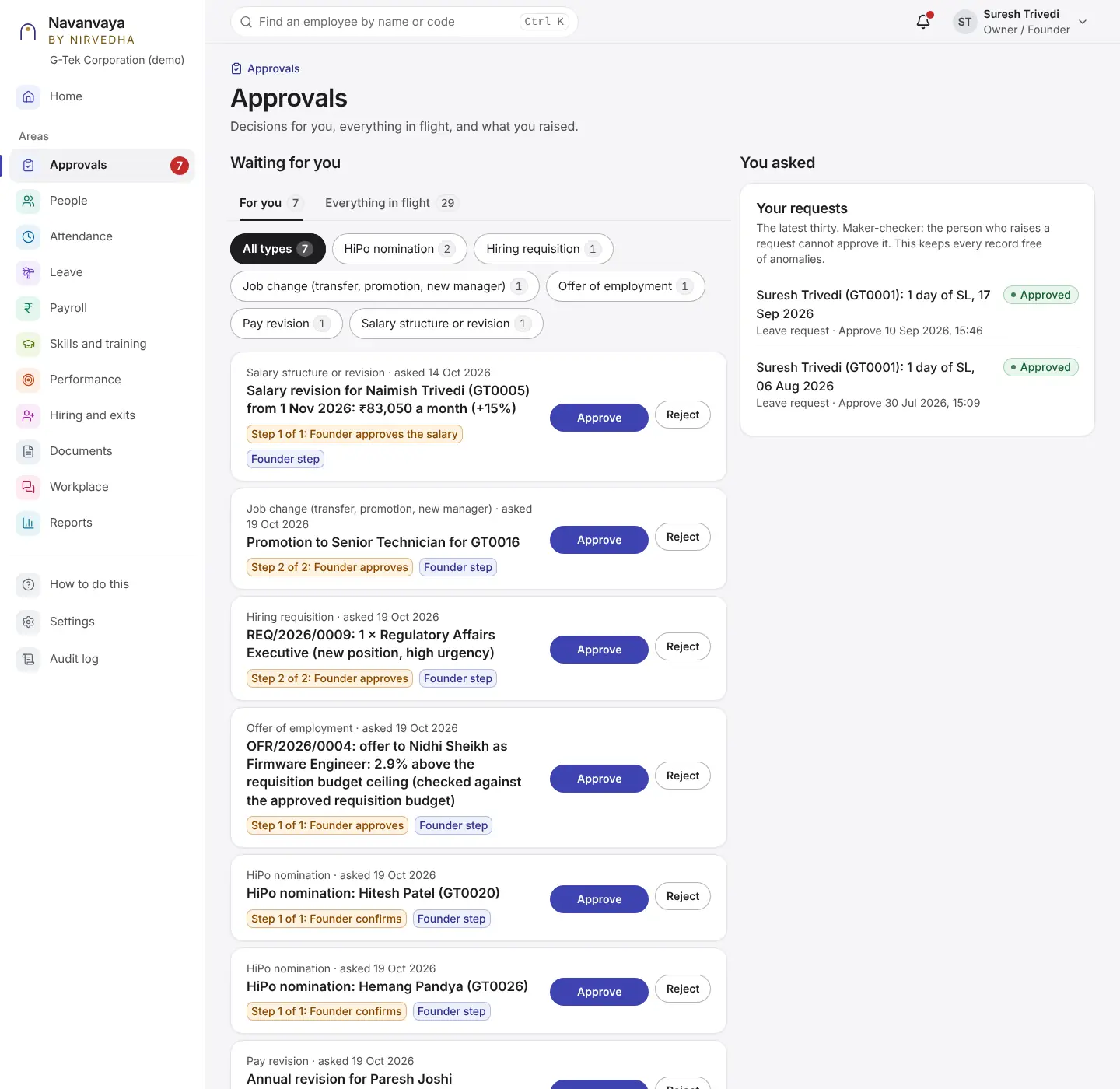
Your Home page shows what needs you today. Every line opens the place where the work is done.
Home
Approvals
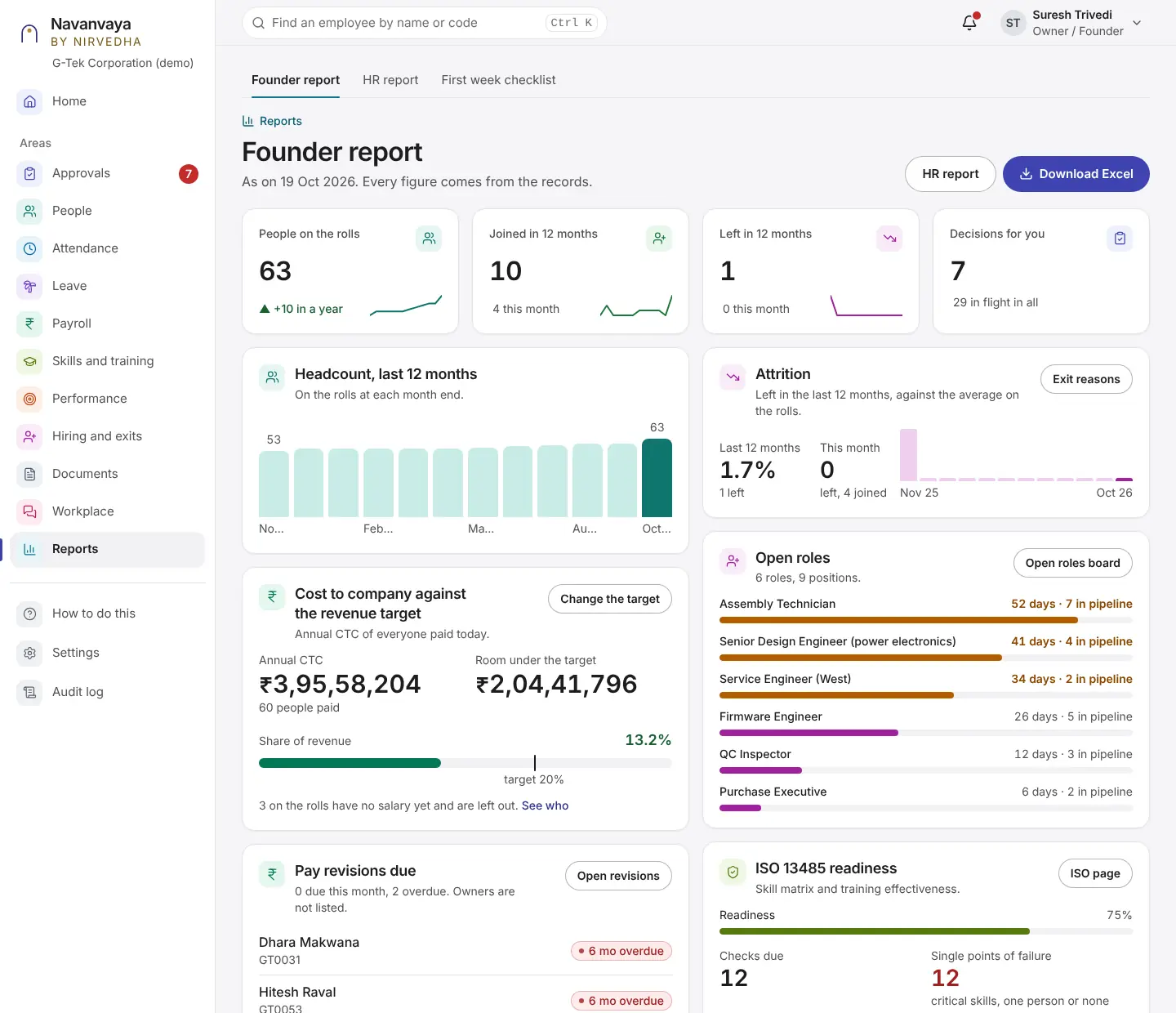
Reports
Every figure comes from the records. Nothing is typed by hand.
Chapter 3 Laptop
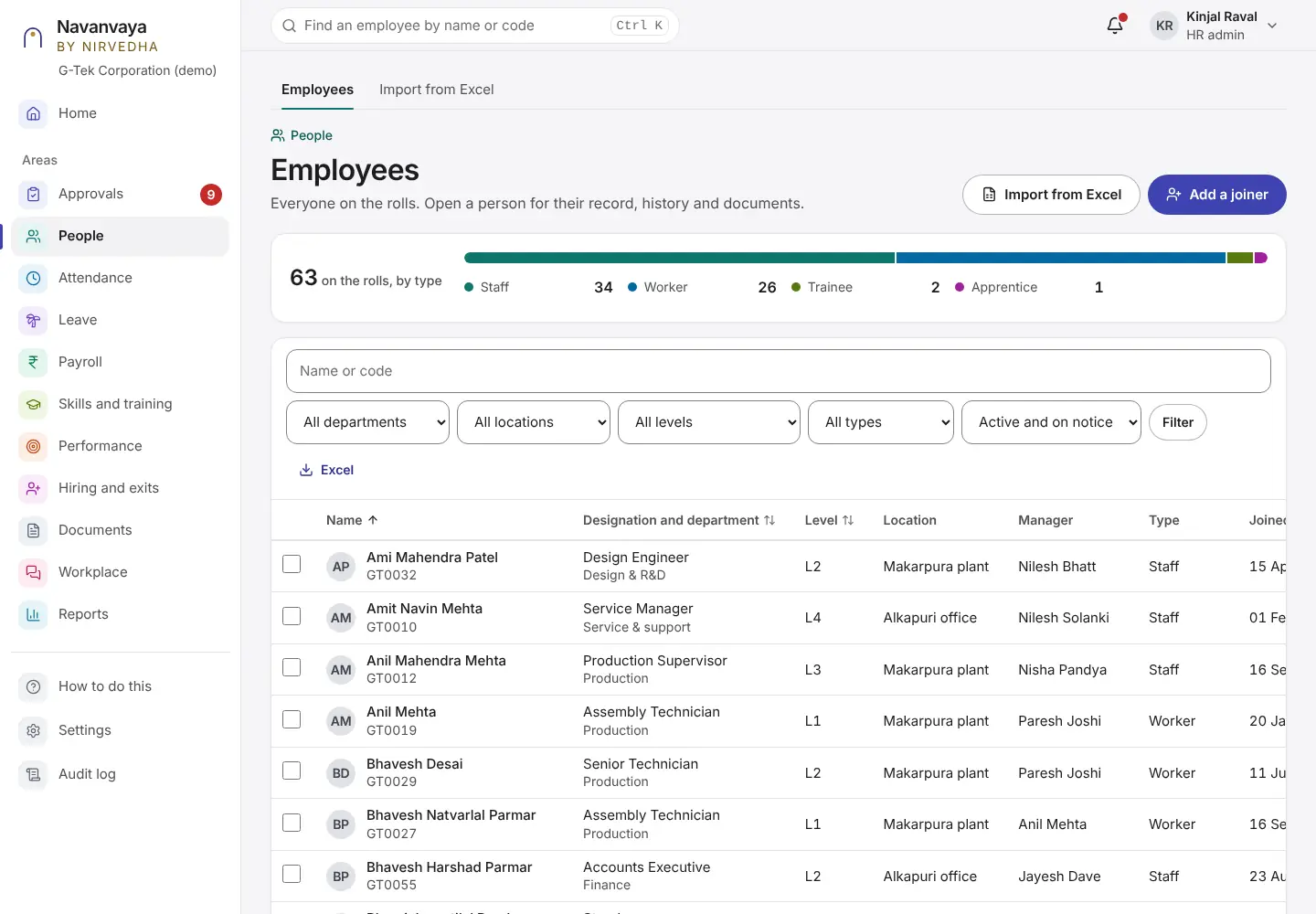
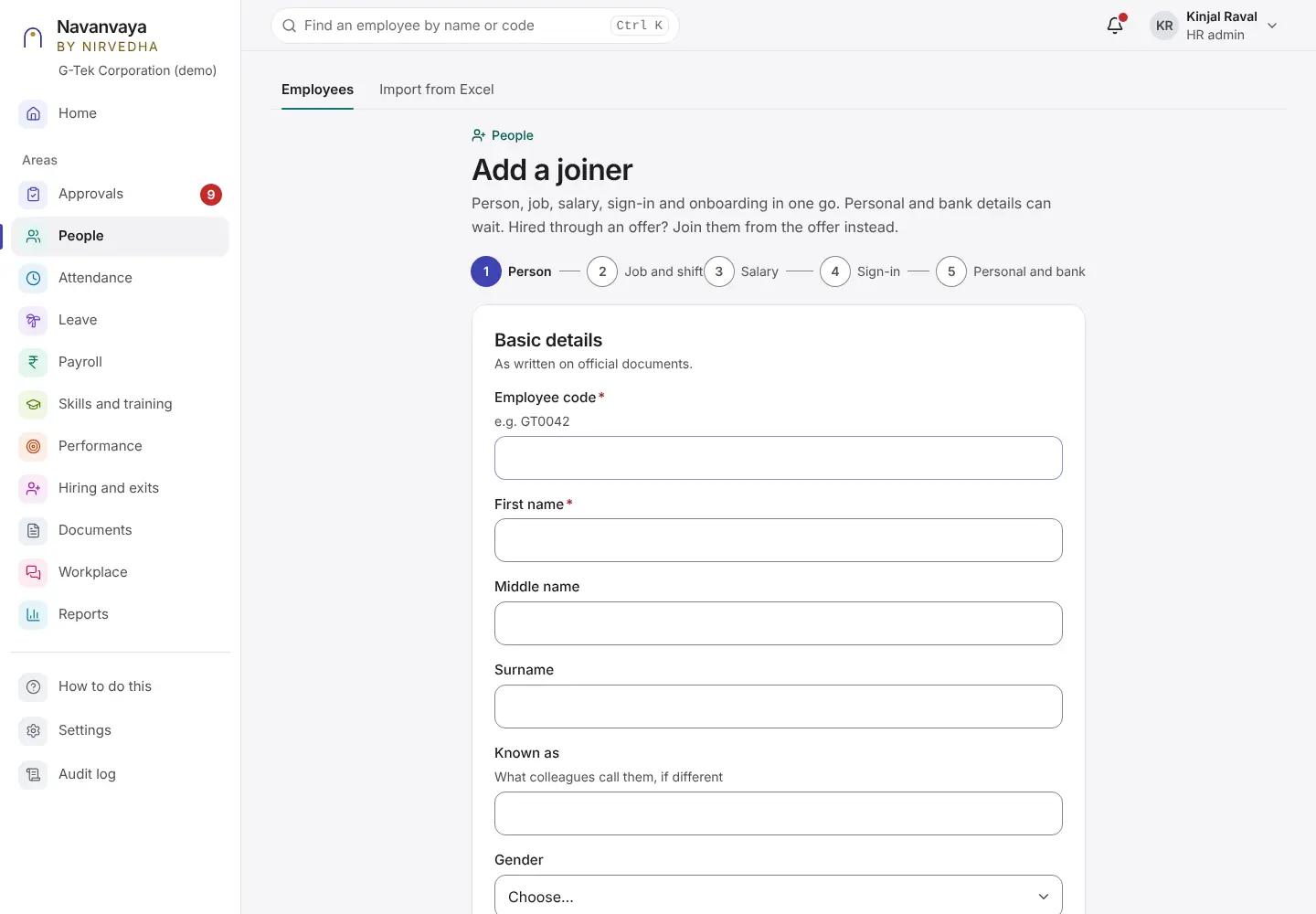
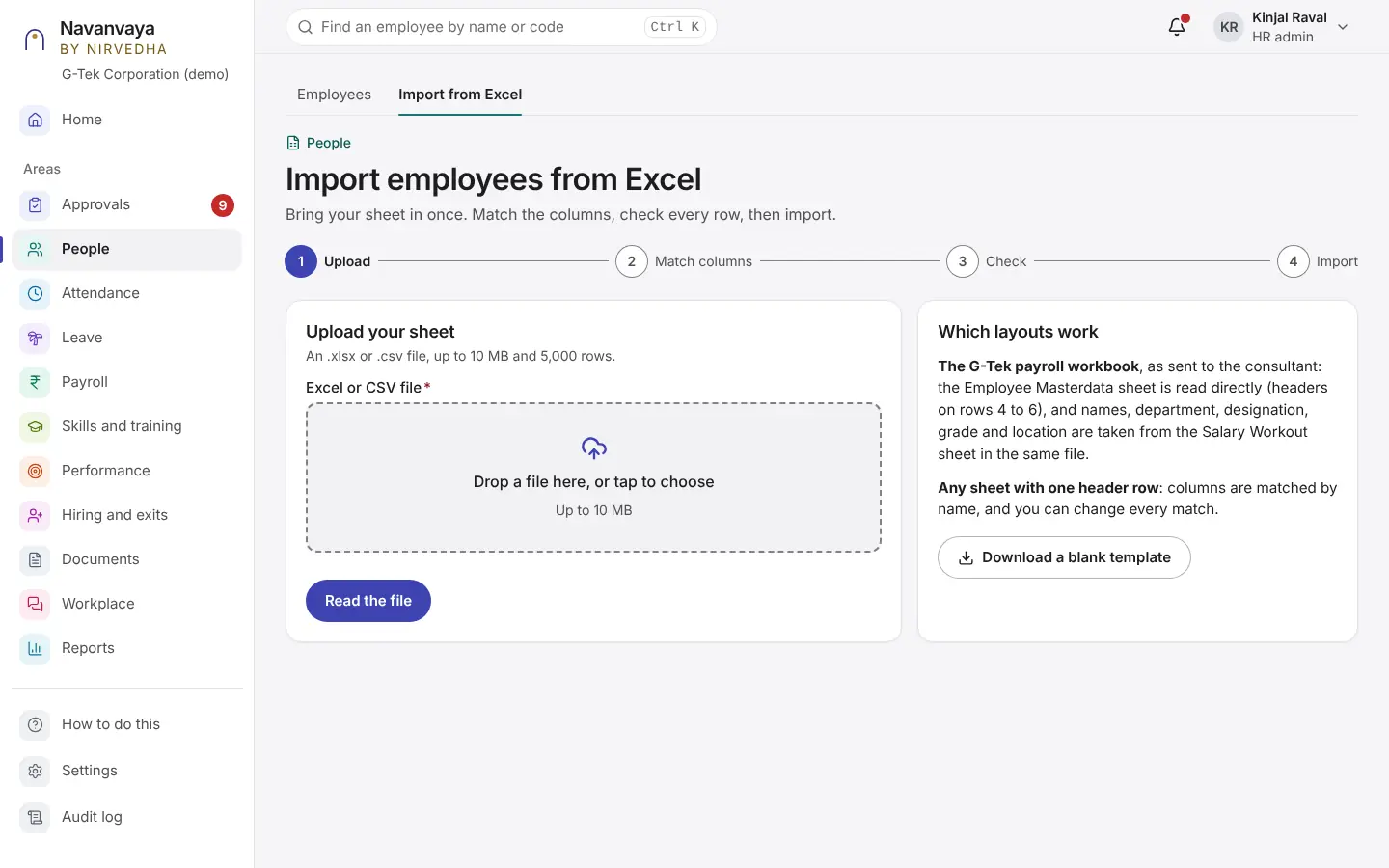
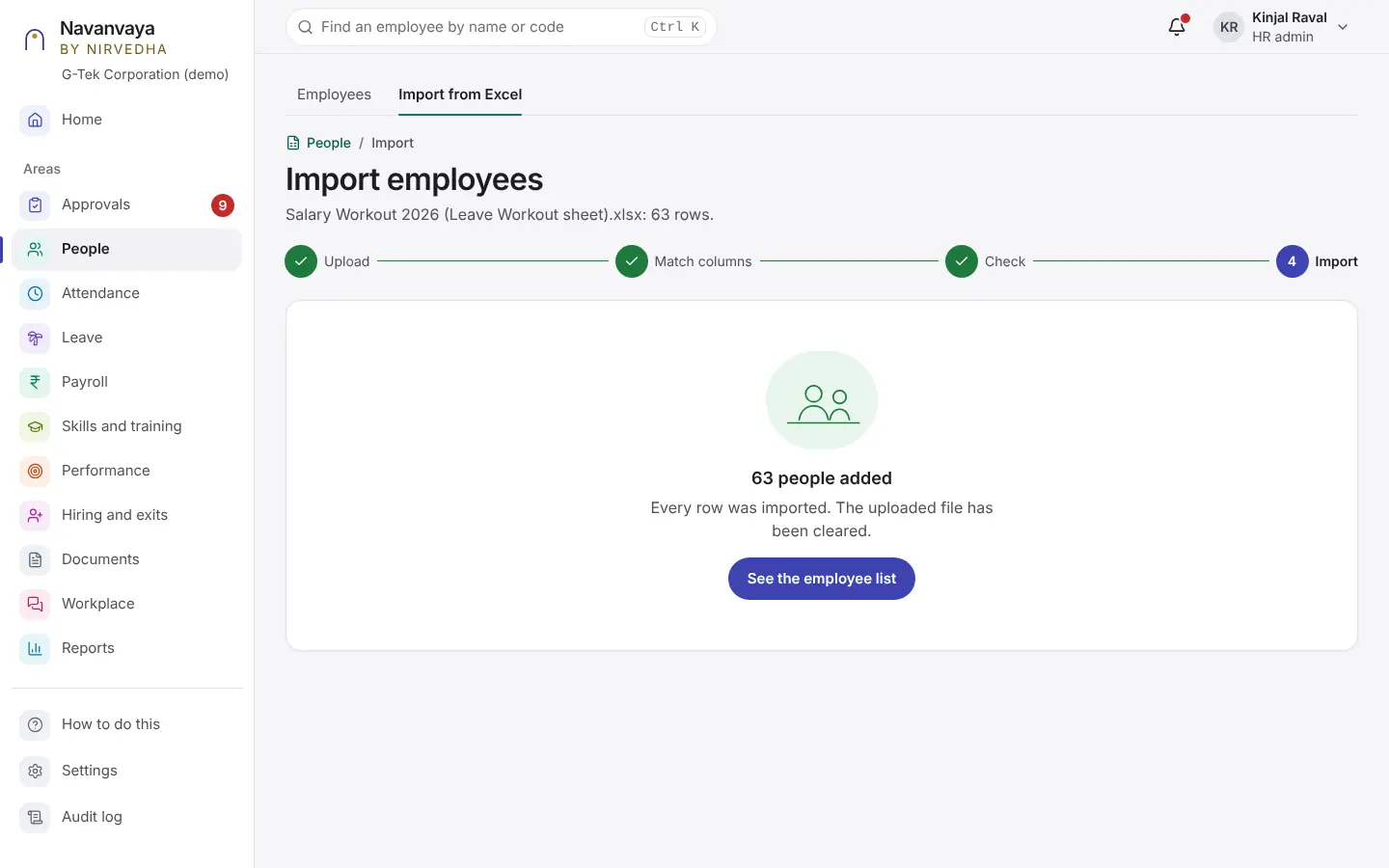
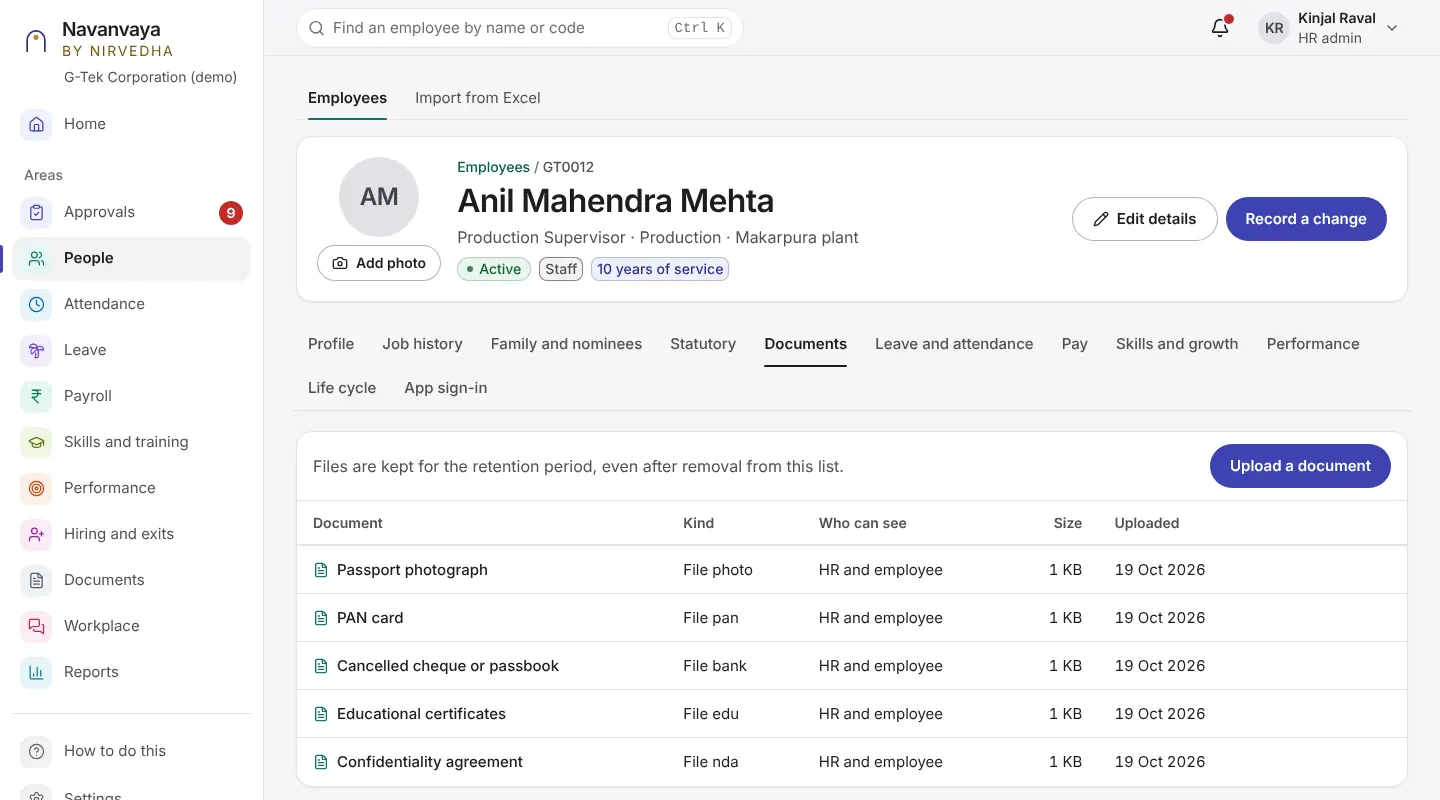
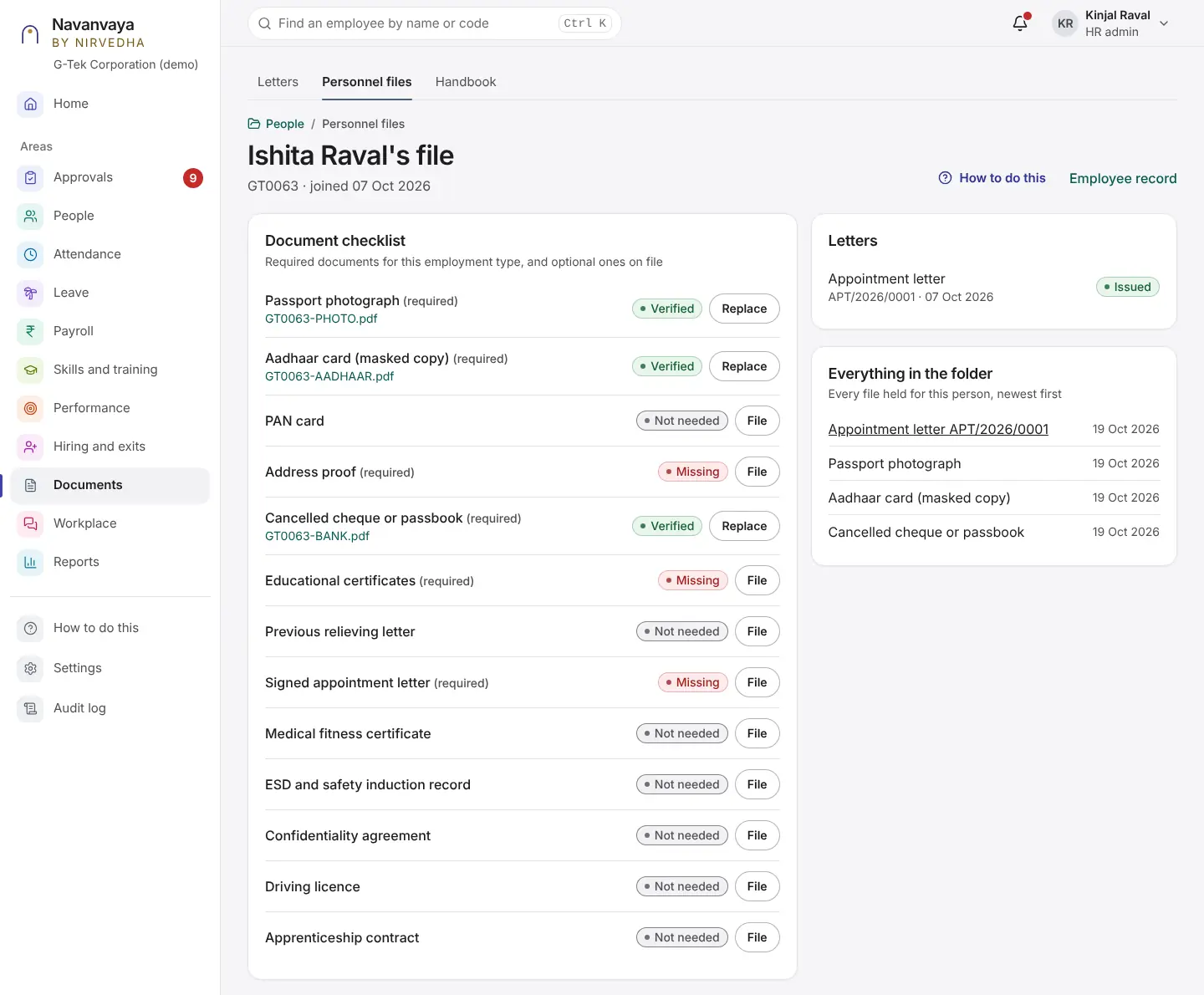
Each person is entered once. Letters, registers and payslips are made from the same record.
Home
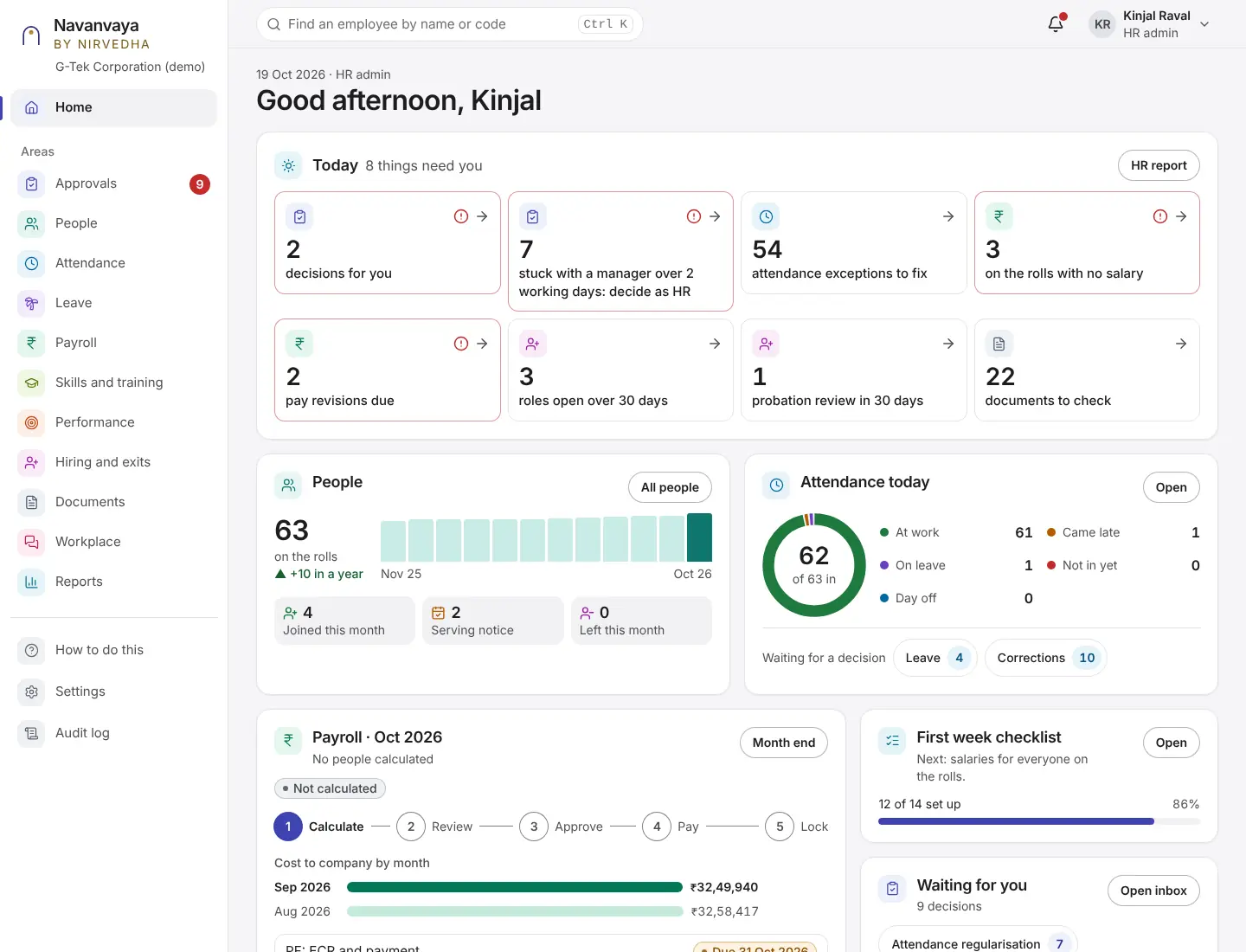
People
Find anyone from any page with the search box at the top (Ctrl K).
People
Documents
Documents
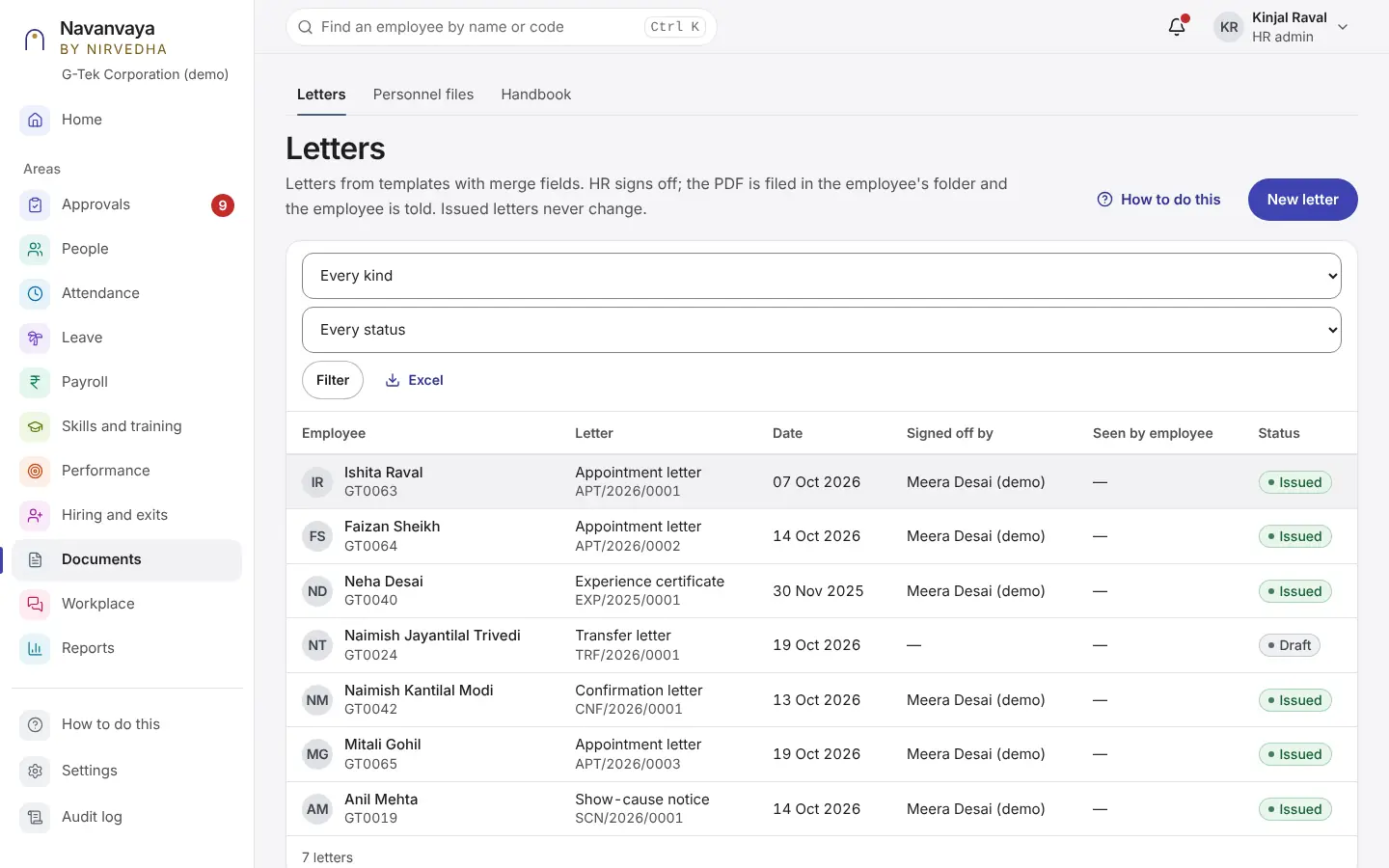
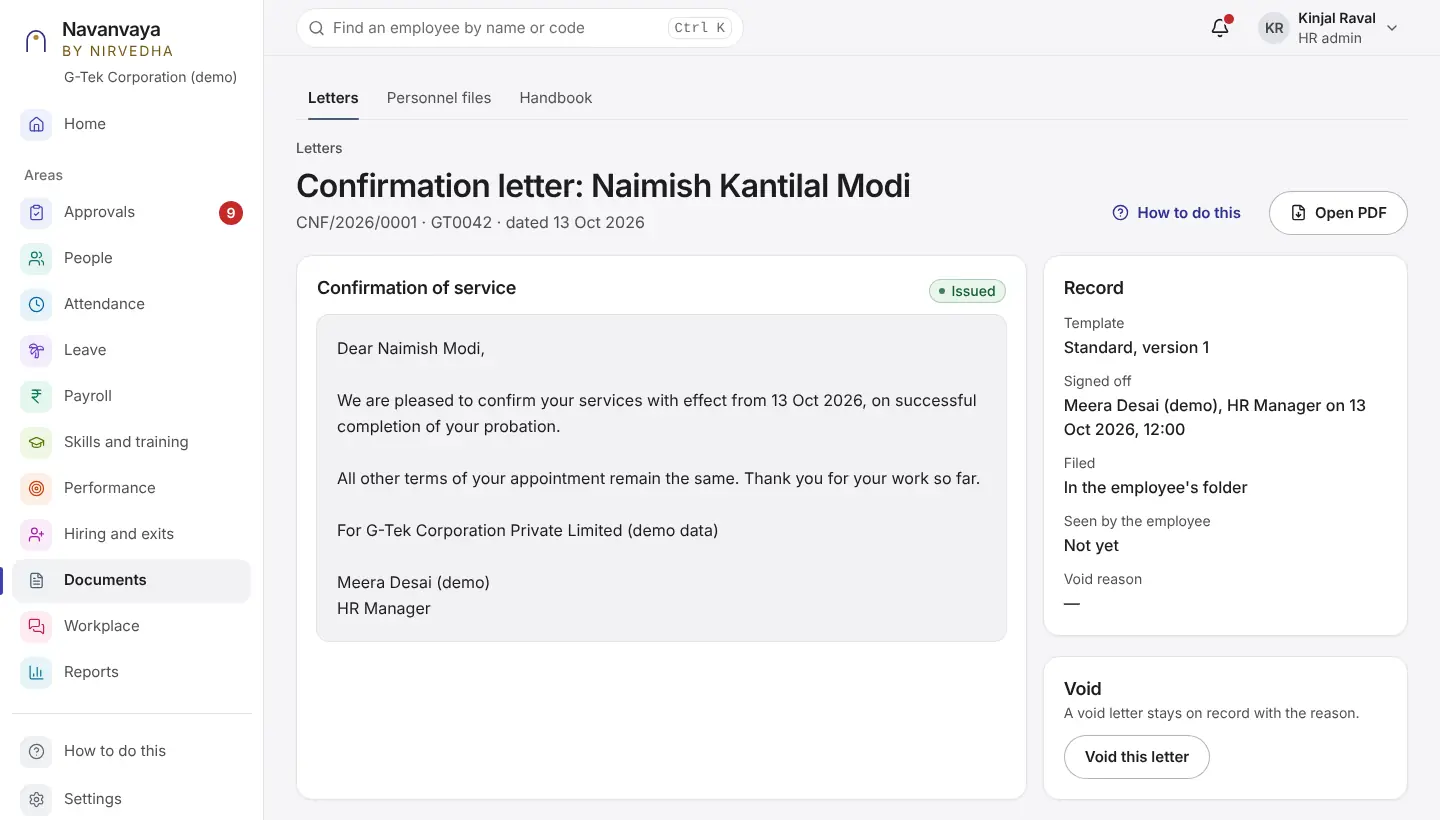
An issued letter never changes. If it is wrong, use Void this letter.
Attendance
Rules are dated: past months keep the rules they were worked under.
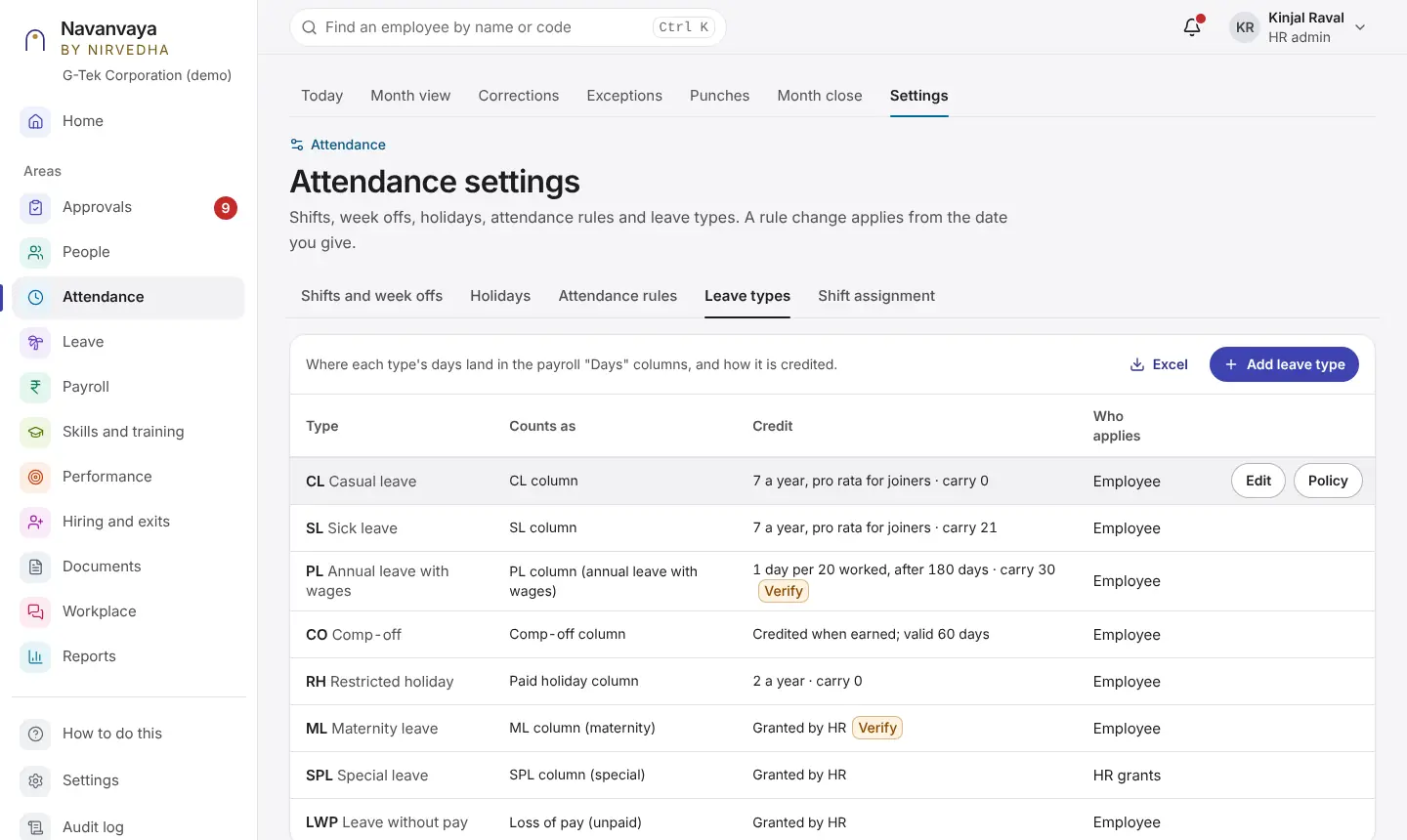
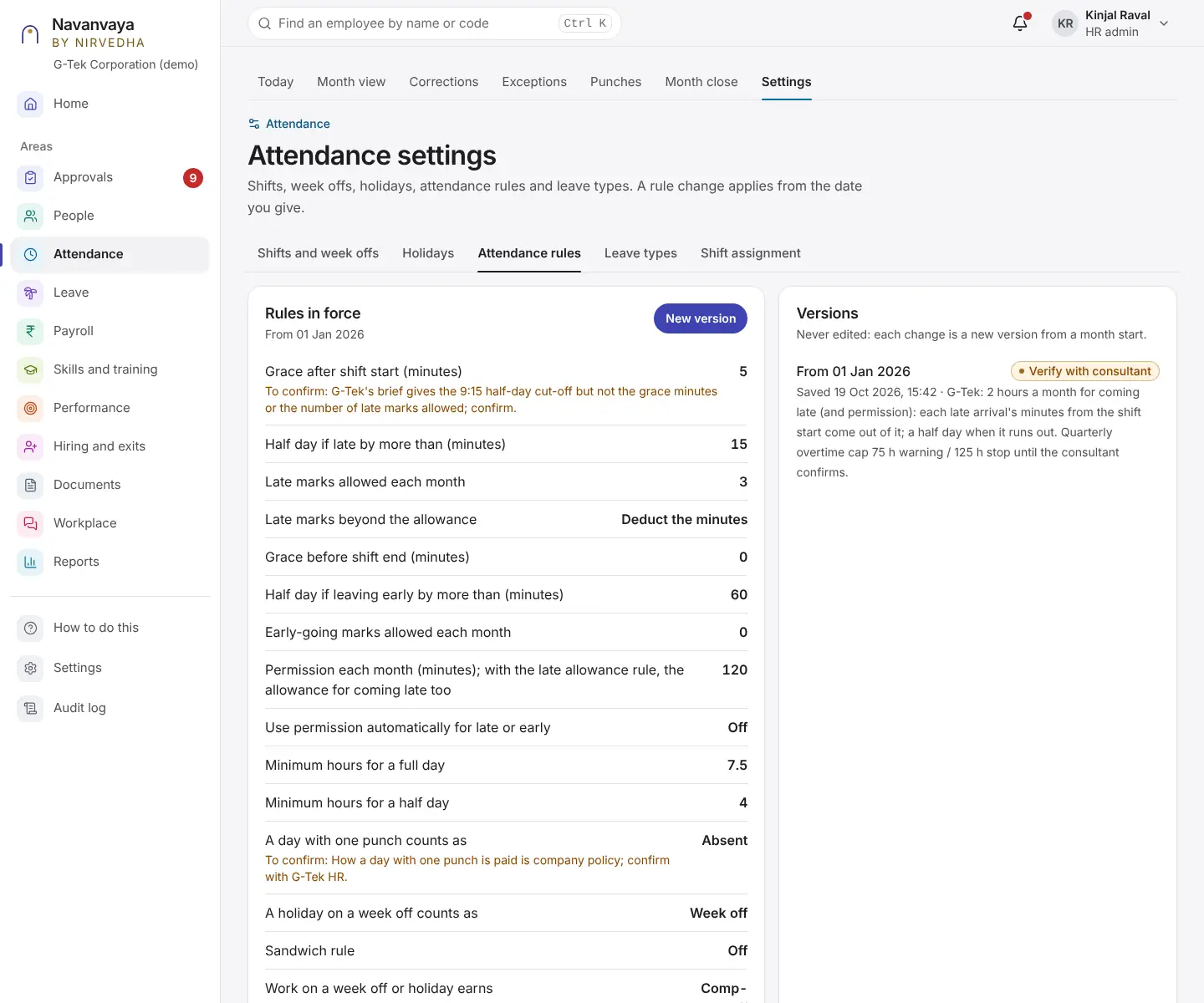
Attendance
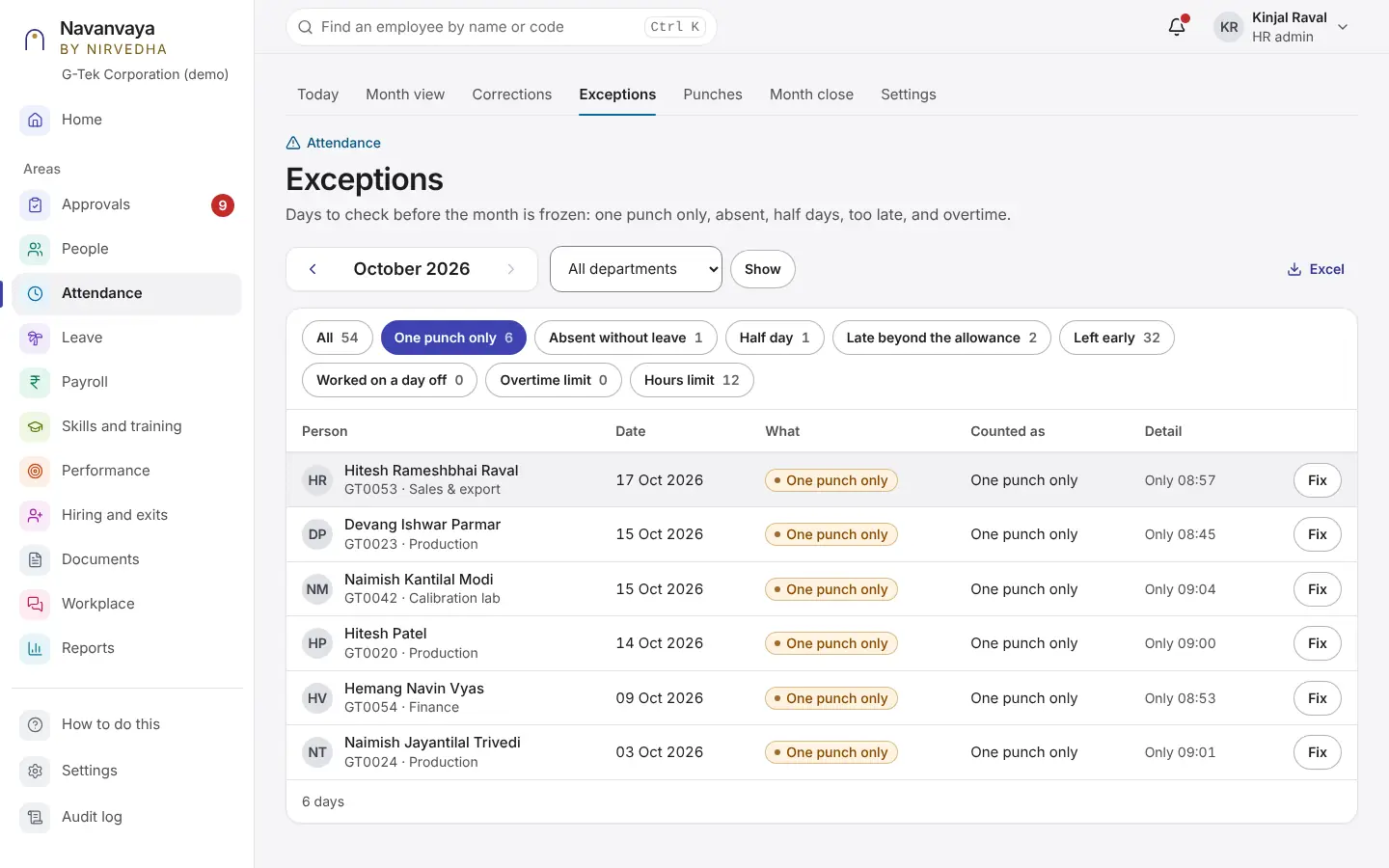
Settings
Nothing is approved without a chain. A switched-off kind of request cannot be sent.
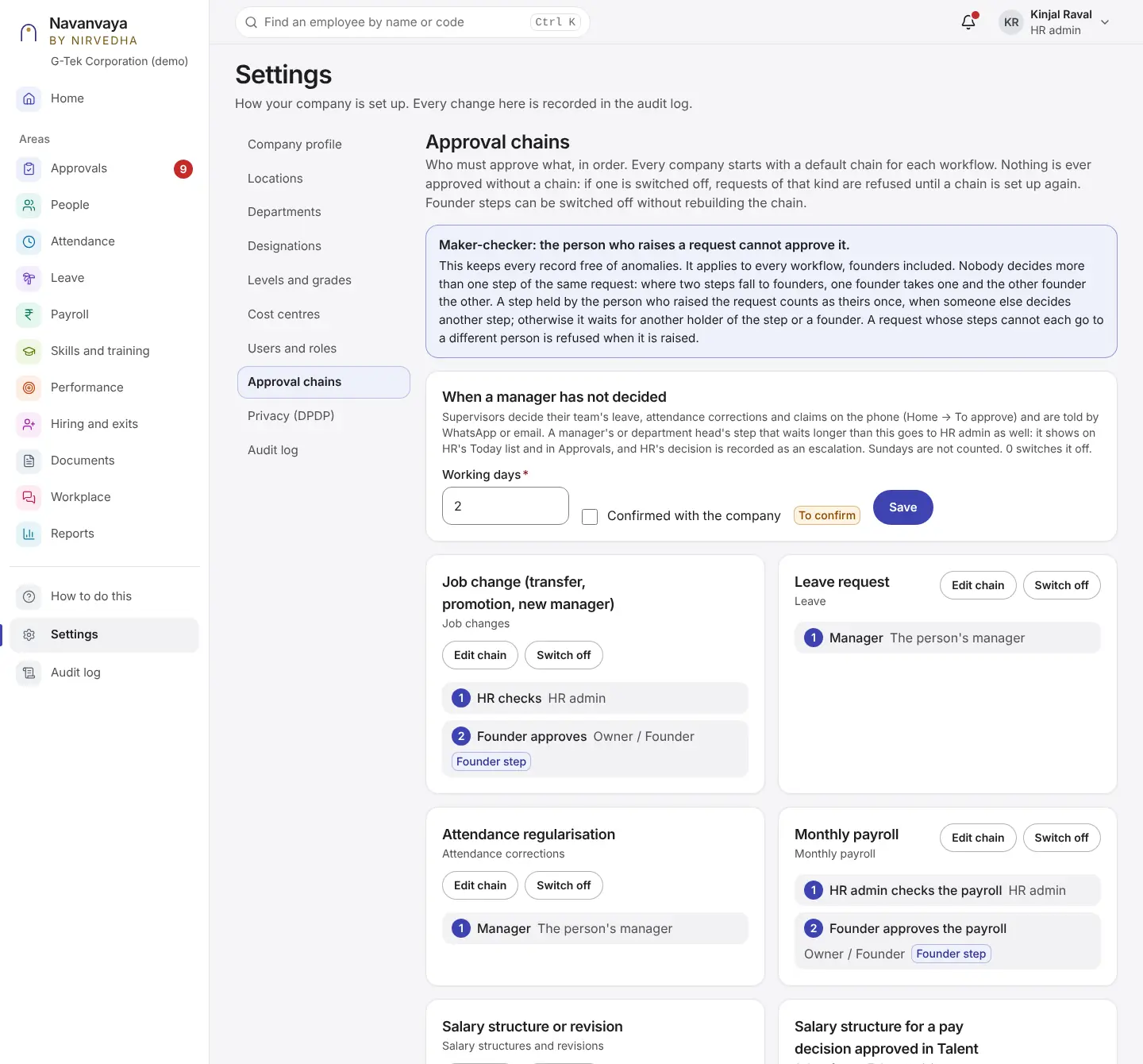
Chapter 4 Laptop
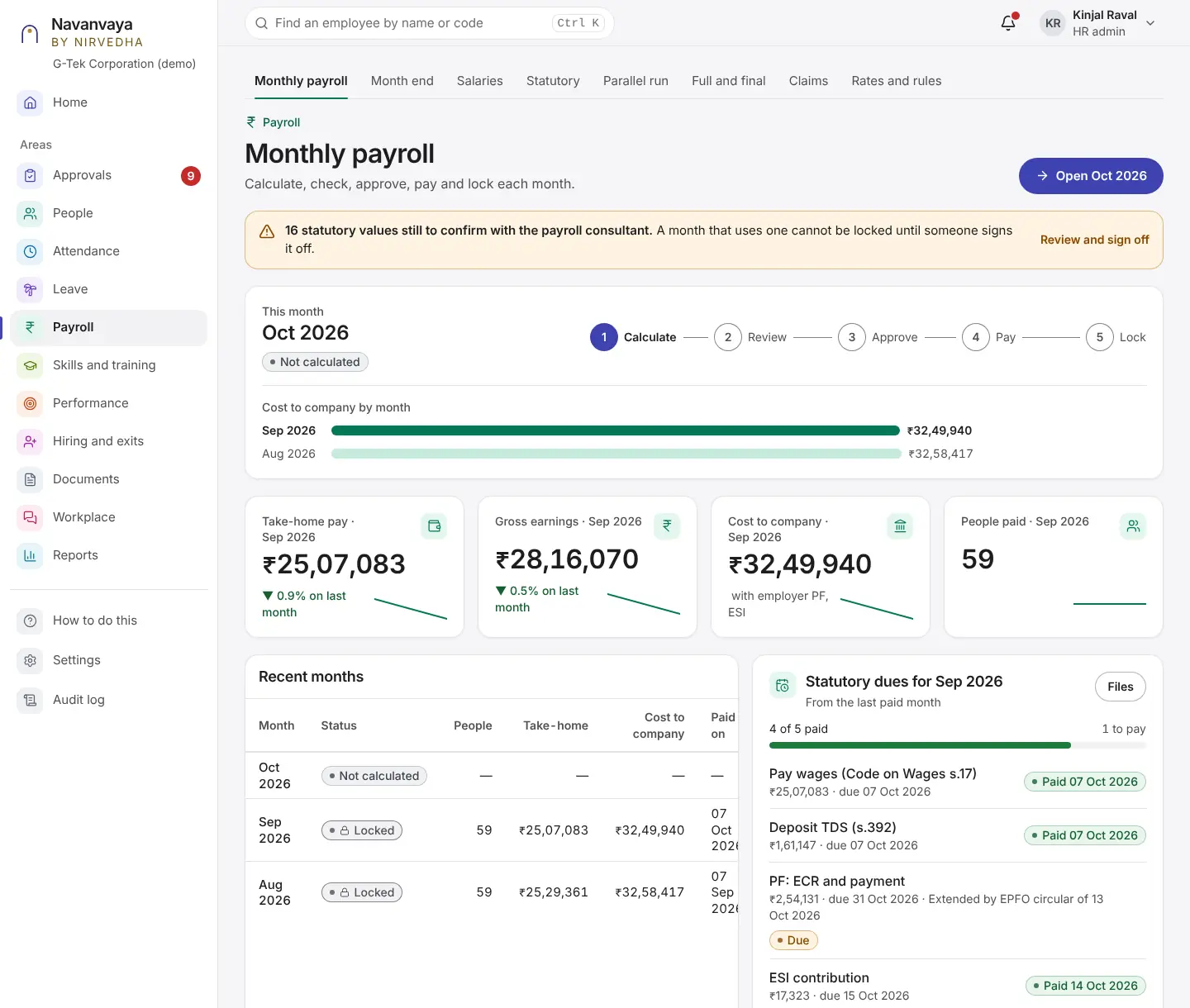
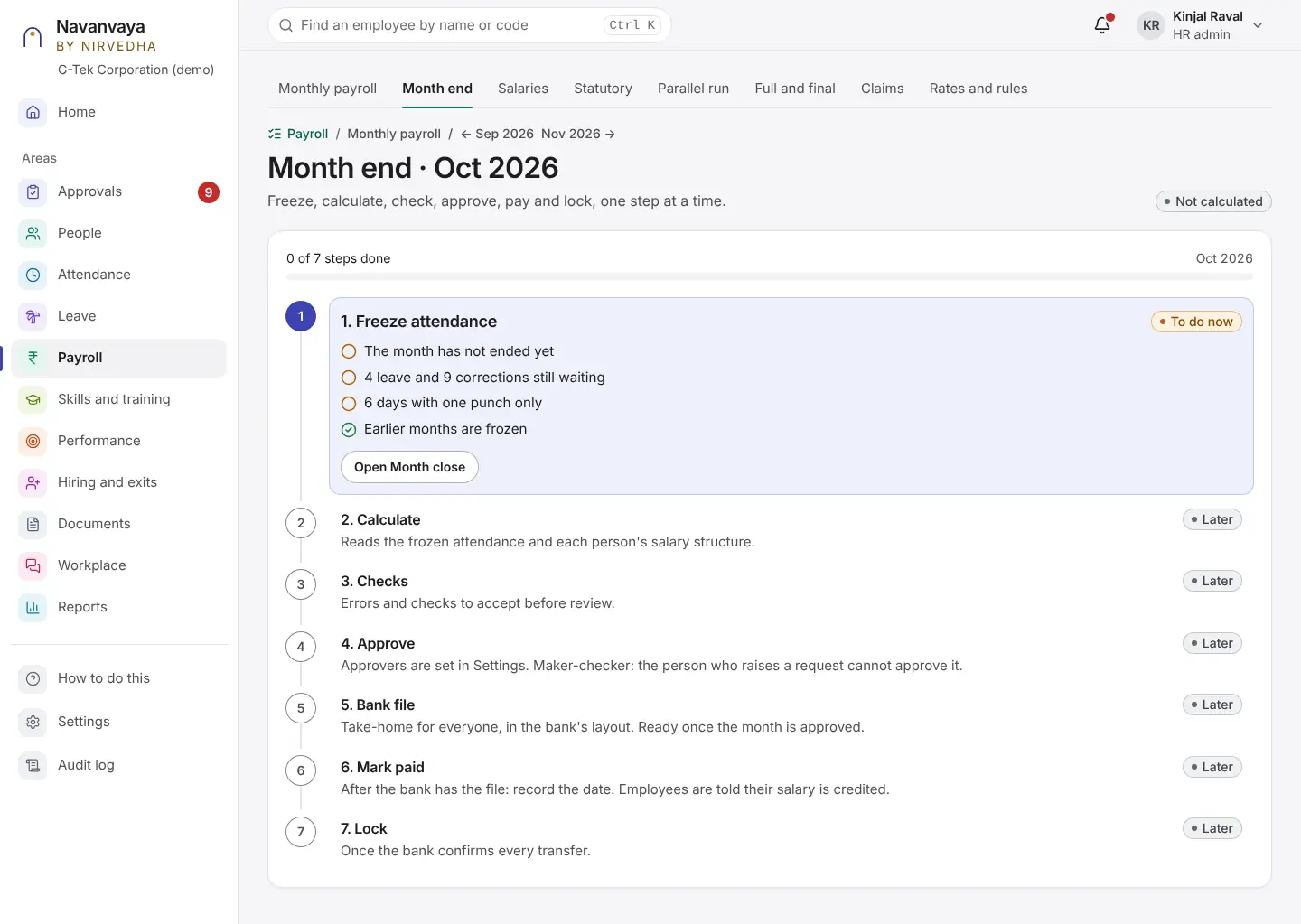
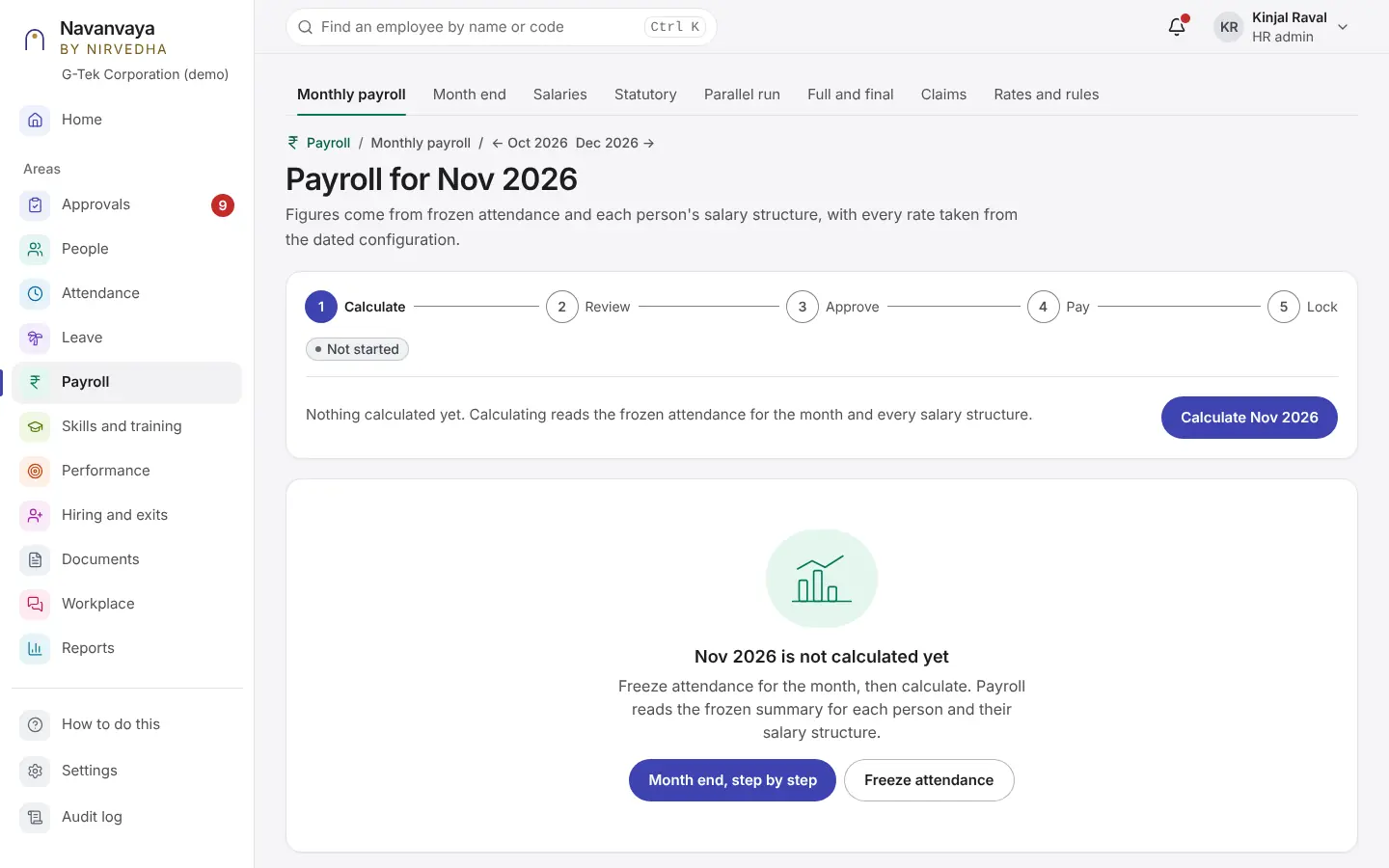
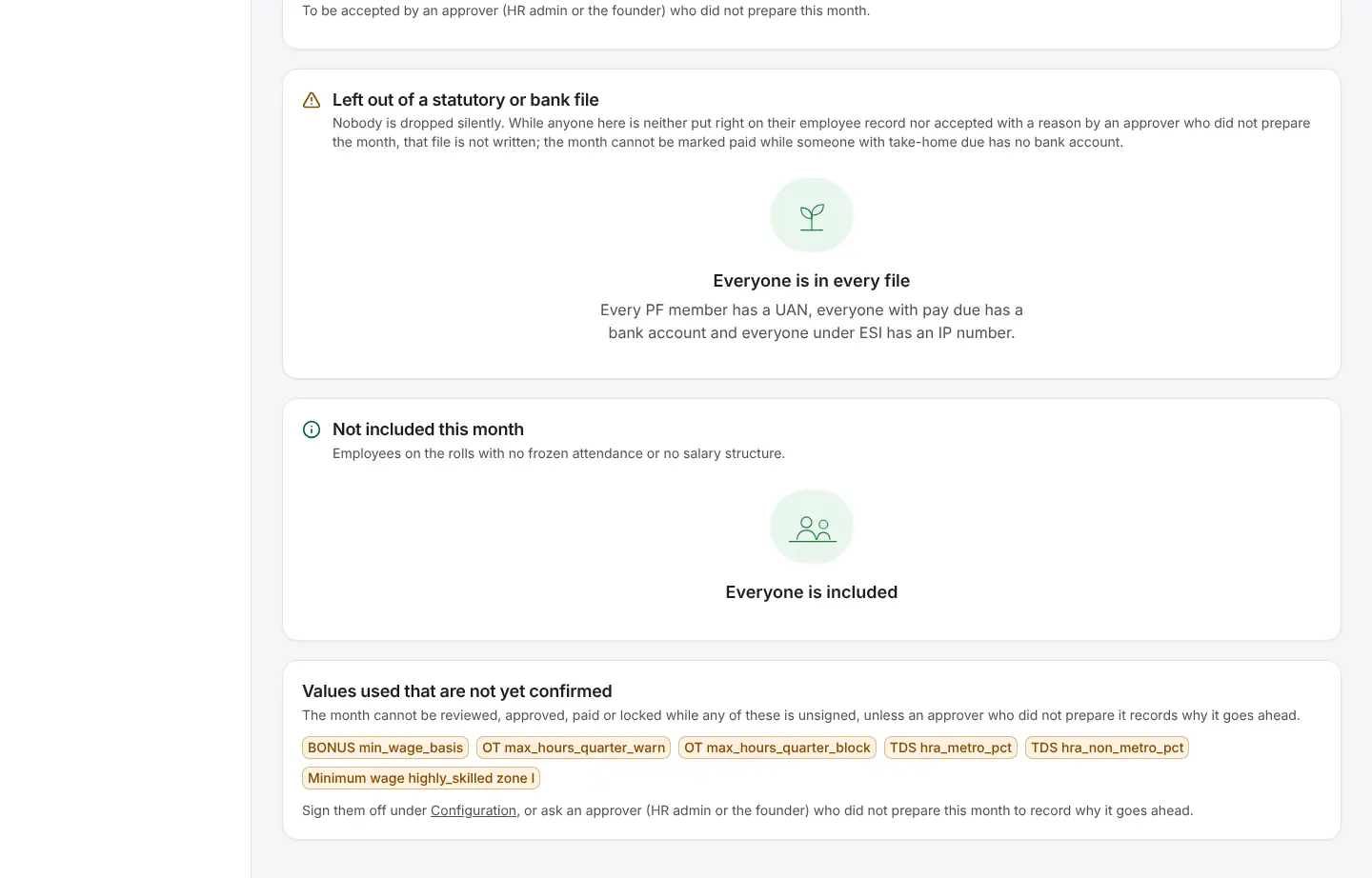
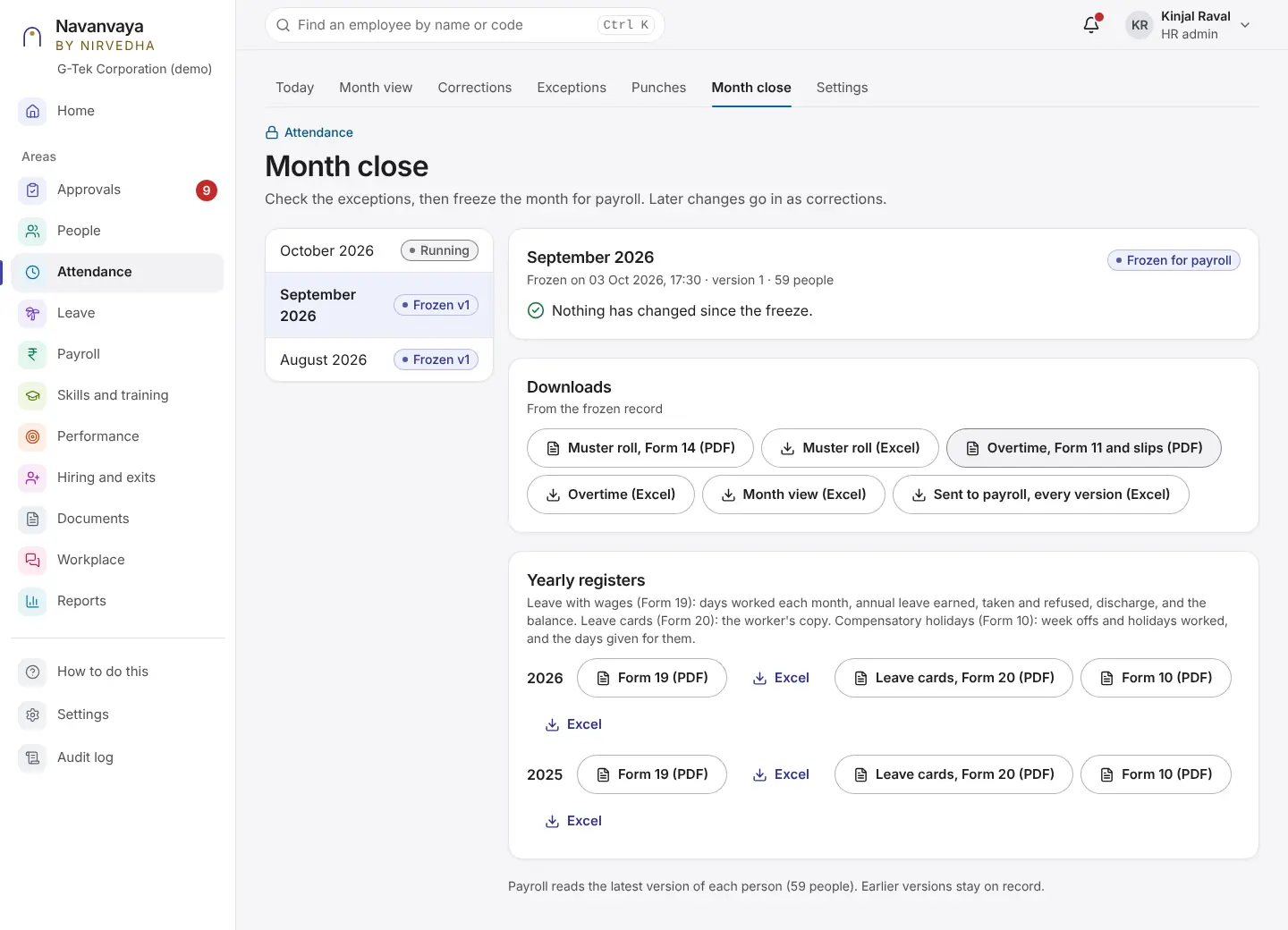
Each month runs one path: freeze attendance, calculate, check, approve, bank file, mark paid, lock.
Payroll
Payroll
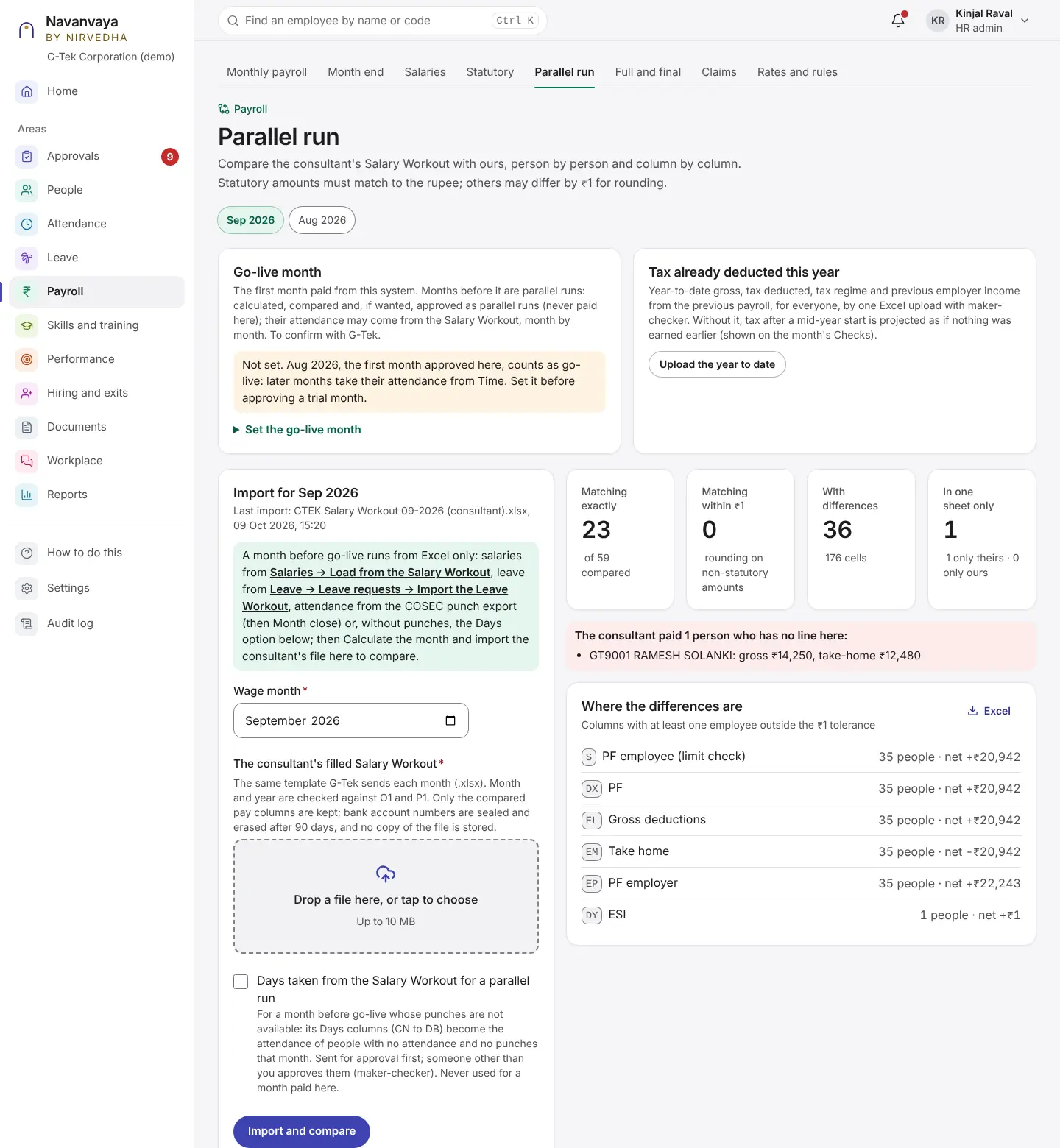
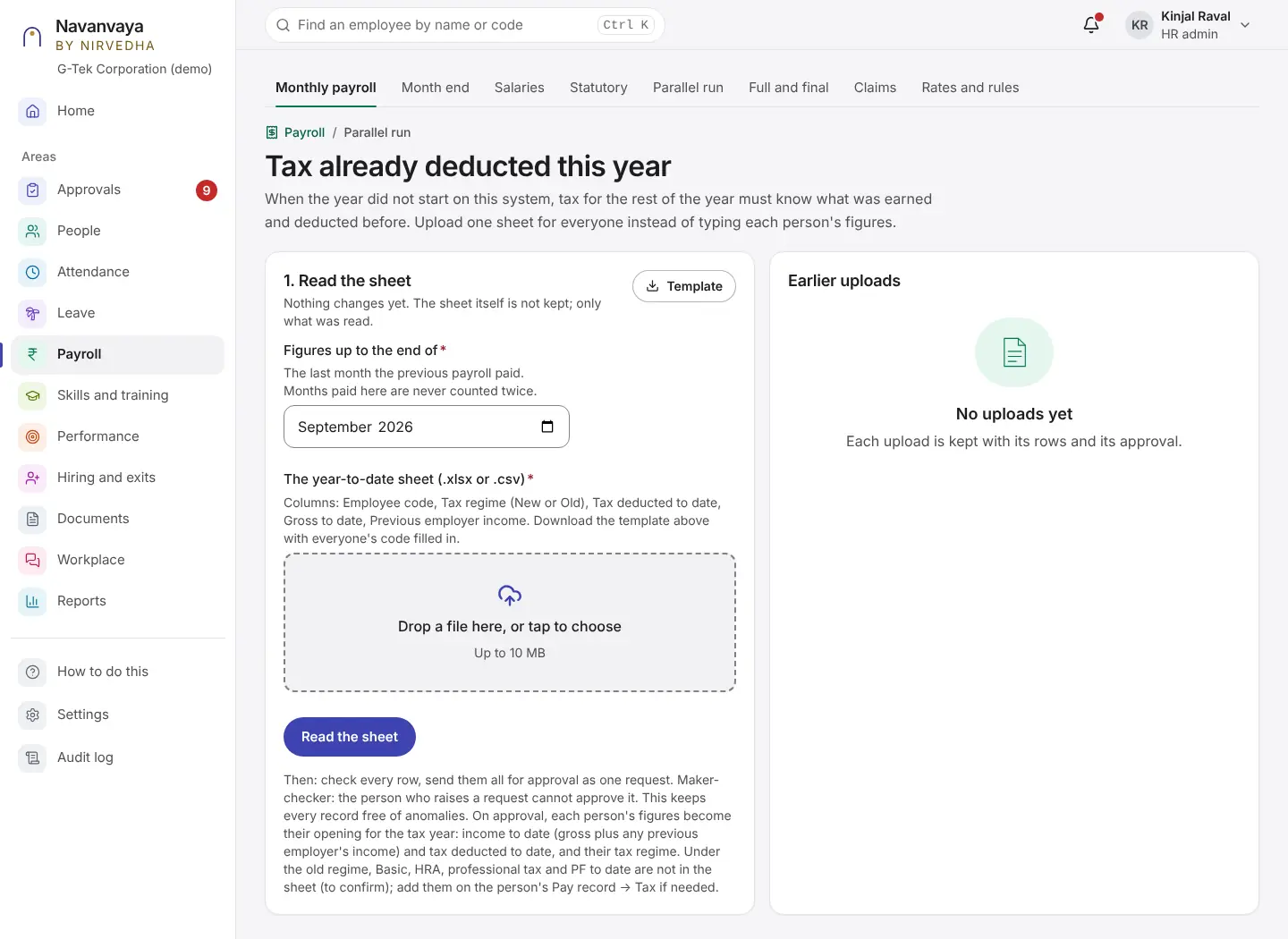
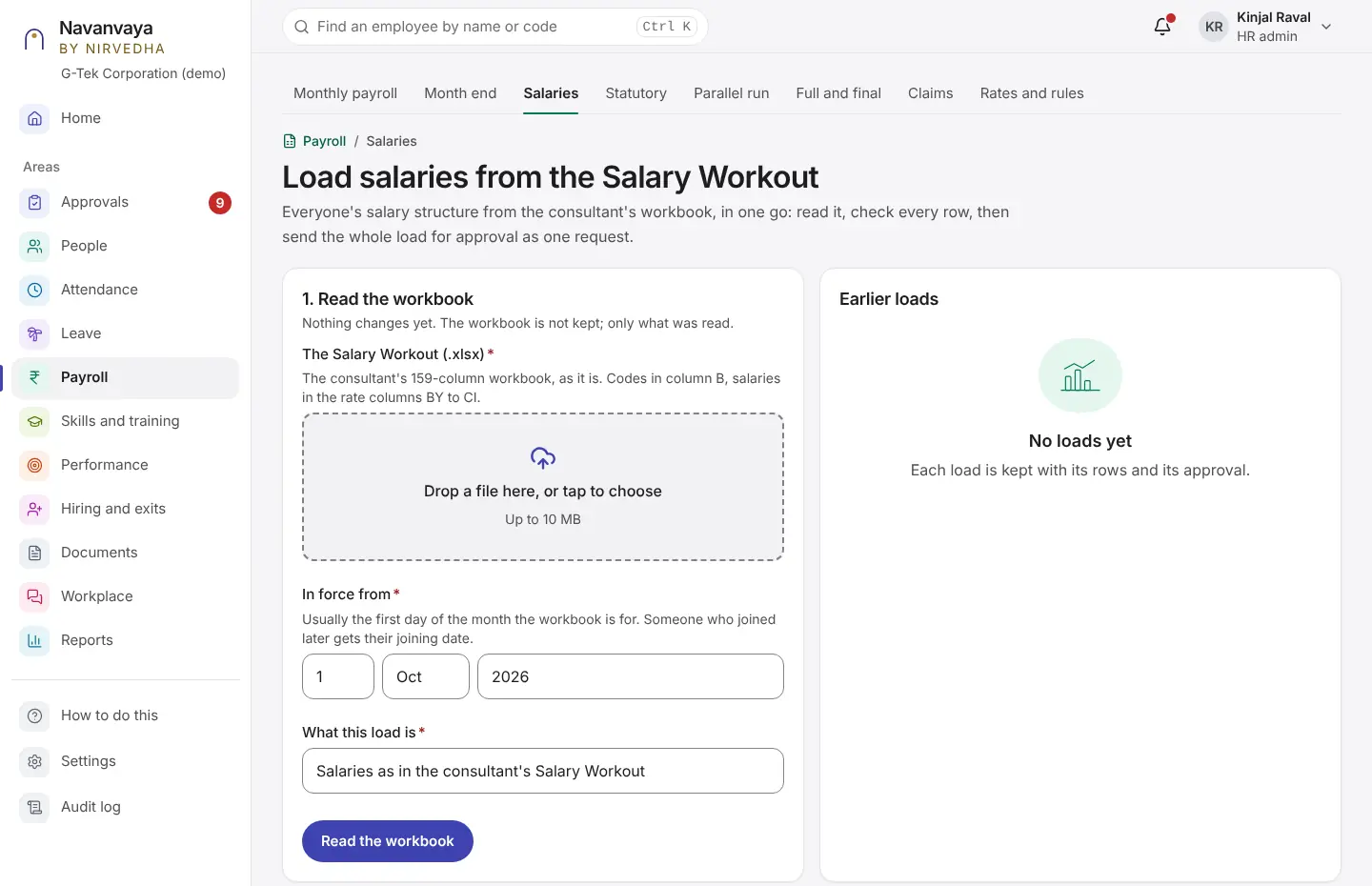
The go-live month is the first month paid from Navanvaya. Months before it are trials, compared with the consultant, never paid.
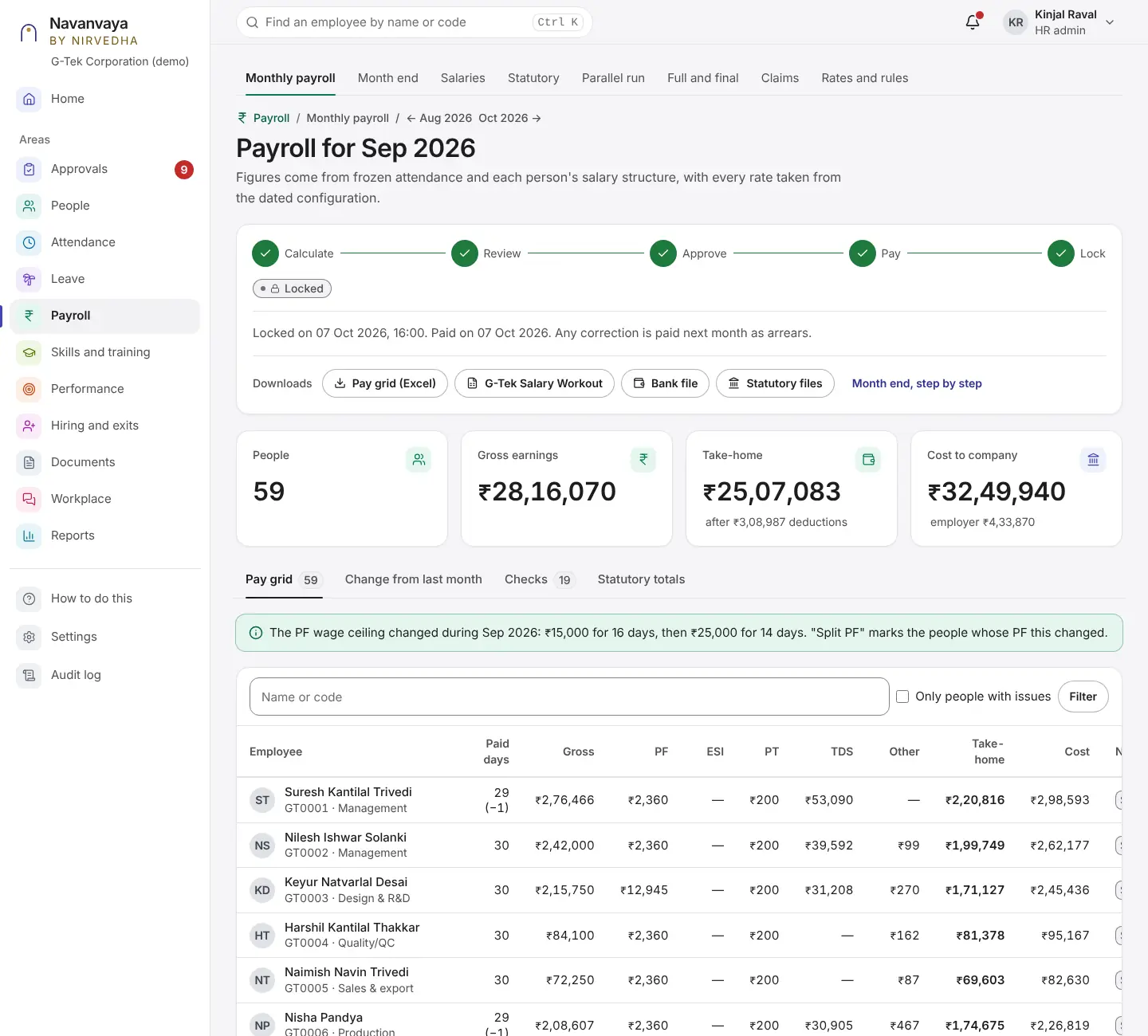
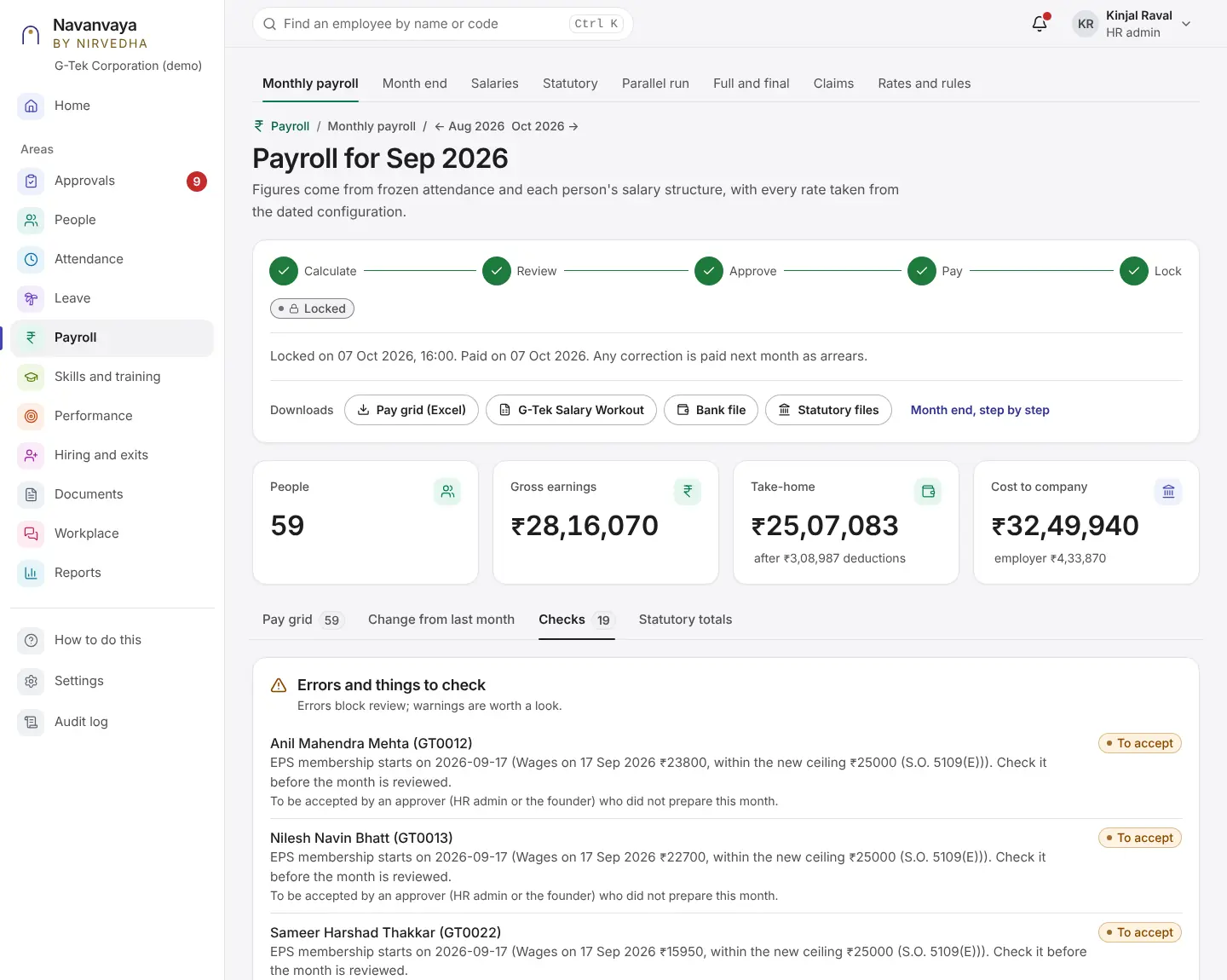
Statutory amounts must match to the rupee; others may differ by ₹1.
Payroll
Payroll
Payroll
Payroll
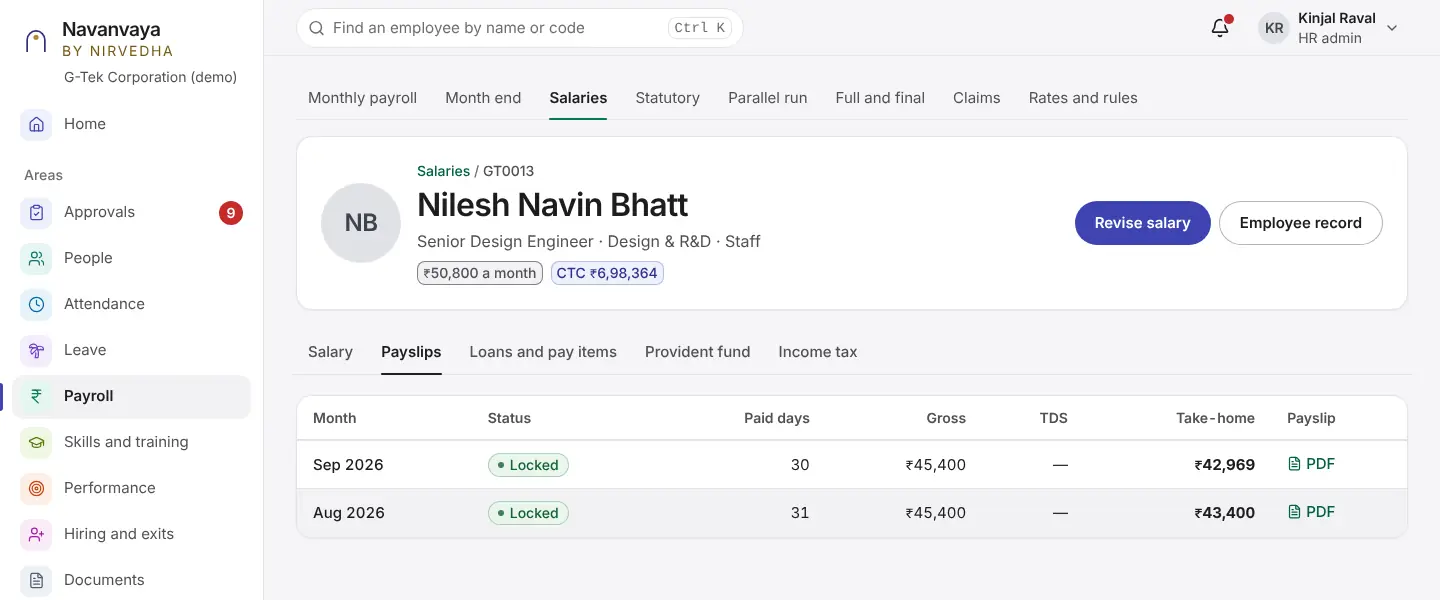
After a month is locked, a correction is paid next month as arrears.
Payroll
Payroll
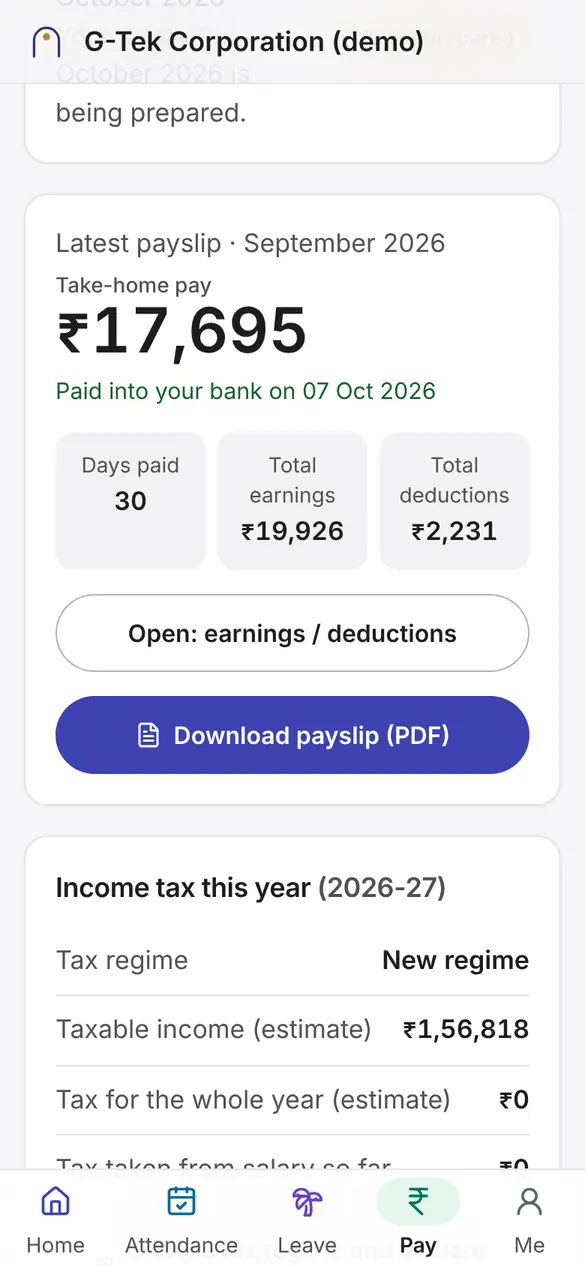
Employees see their own payslip on their phone once the month is paid.
Payroll
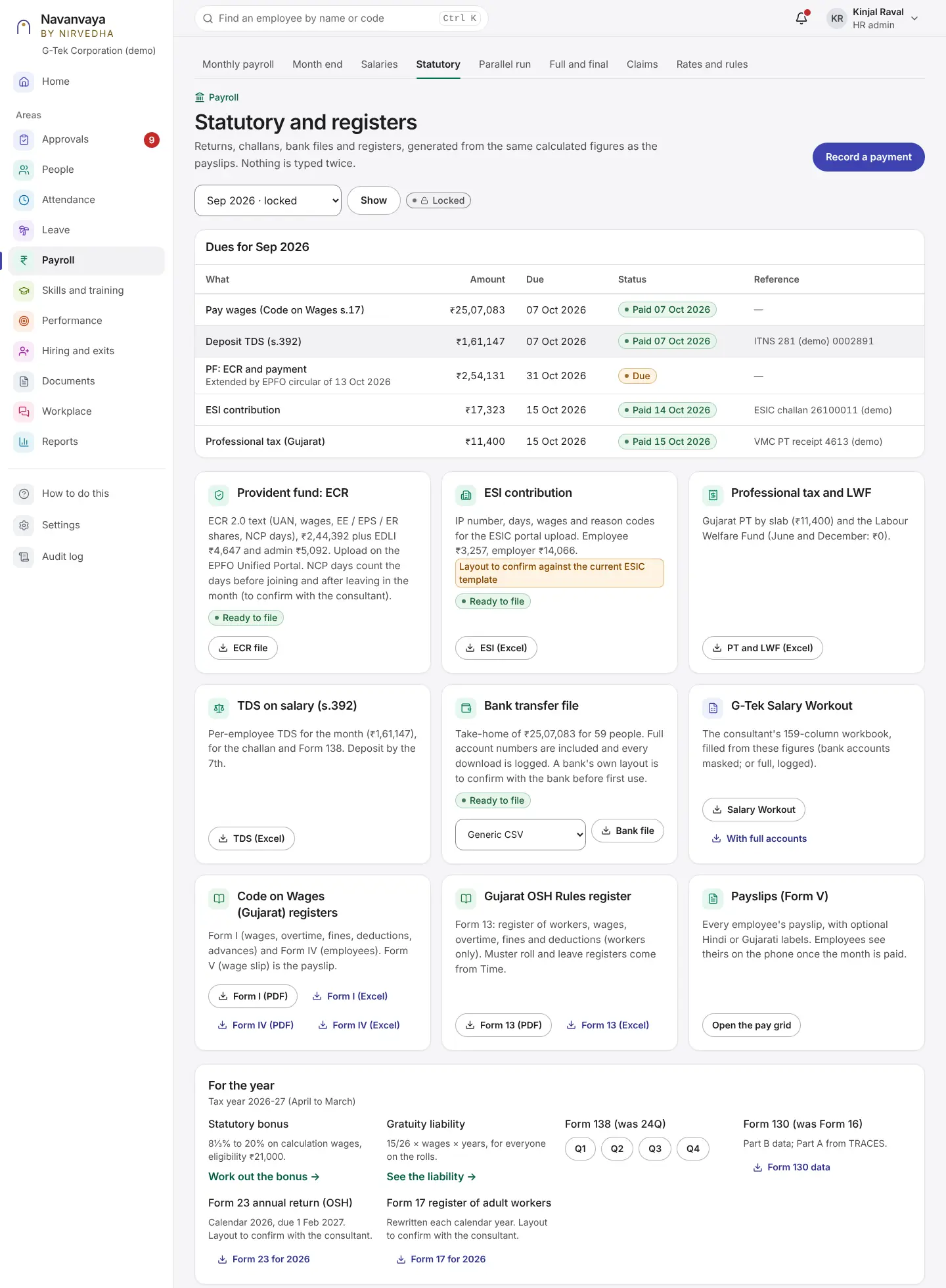
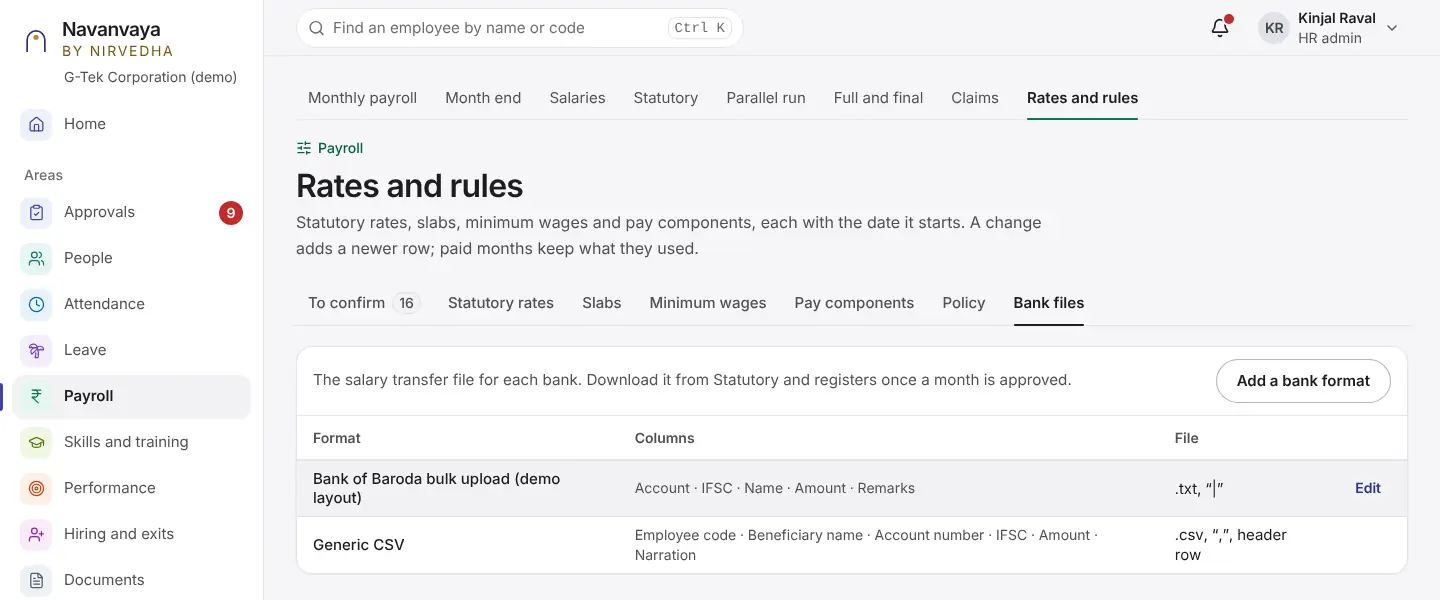
Bank layouts are in Rates and rules → Bank files.
Attendance
Chapter 5 Phone
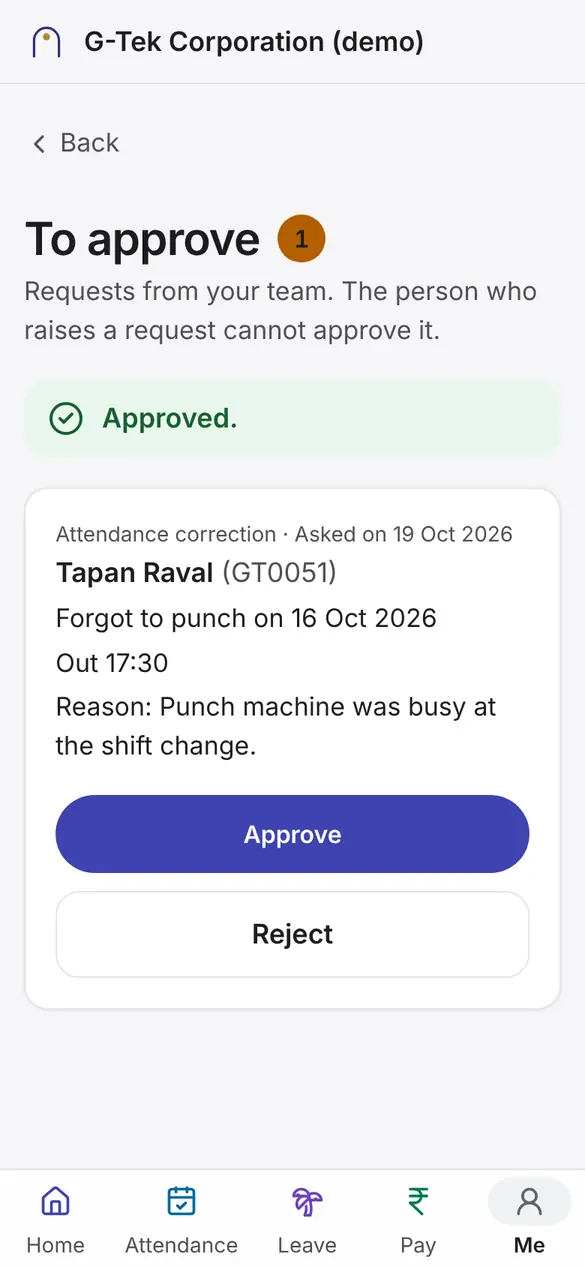
Supervisors decide their team's leave, attendance corrections and claims. A request left too long also goes to HR.
Approvals
You can never approve a request you raised yourself.
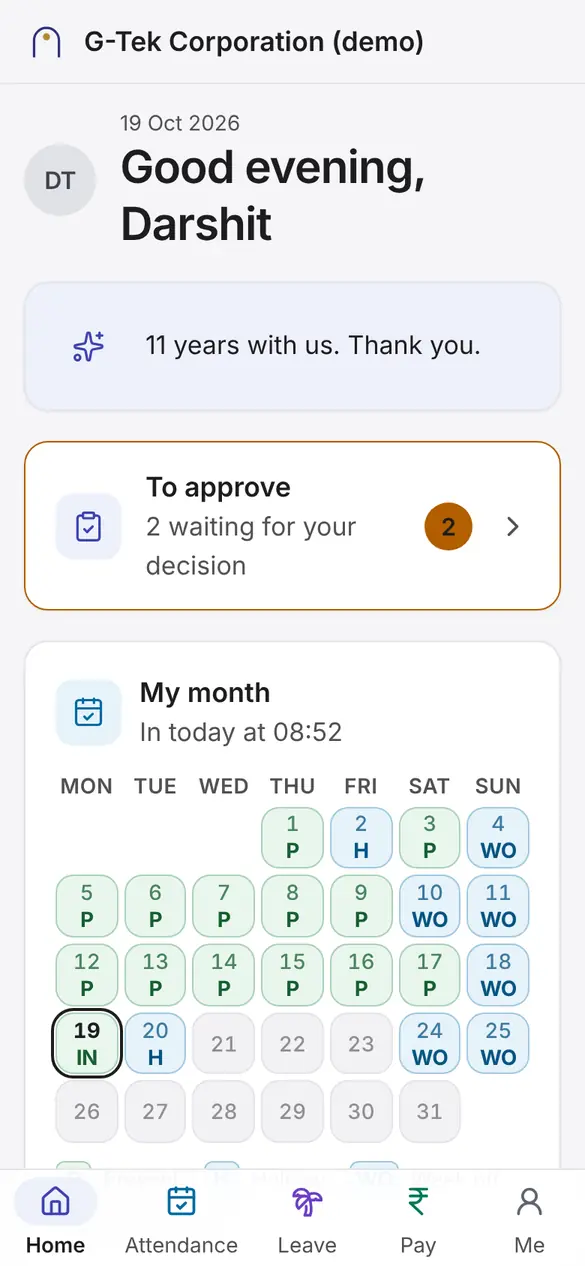
1 of 7On Home, tap To approve. The number is how many requests wait for you.
Chapter 6 Phone
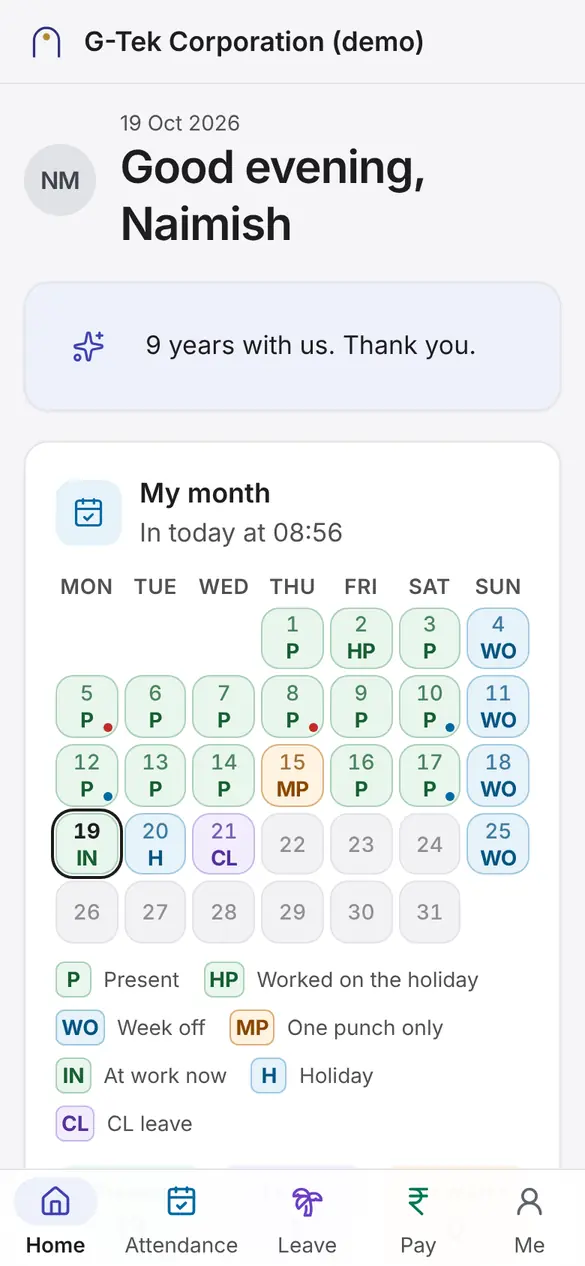
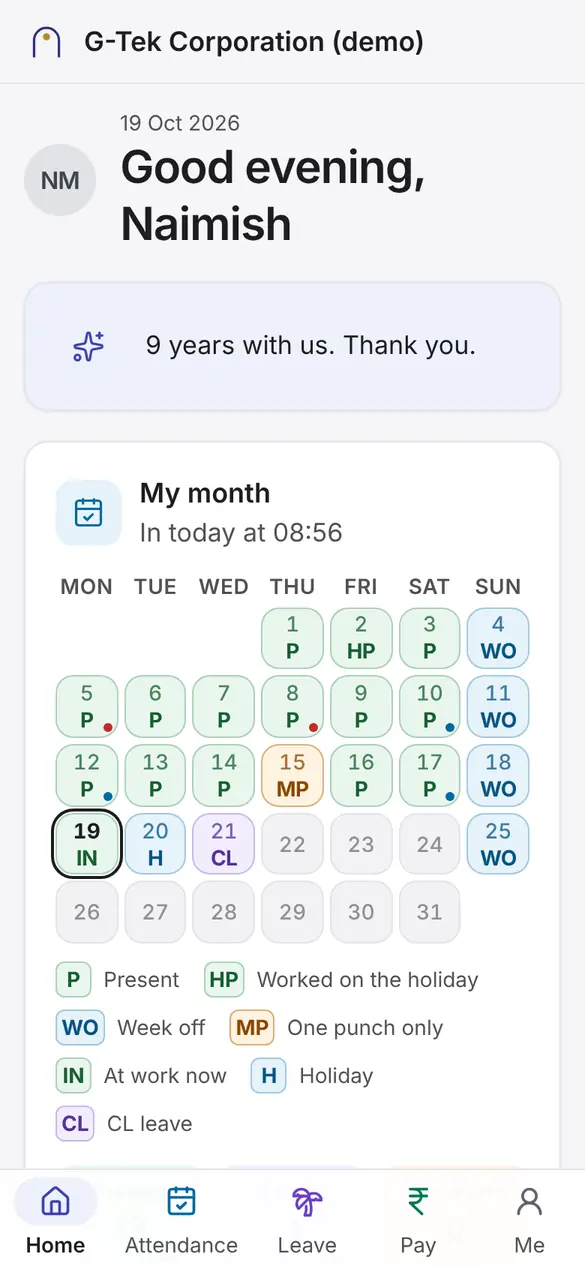
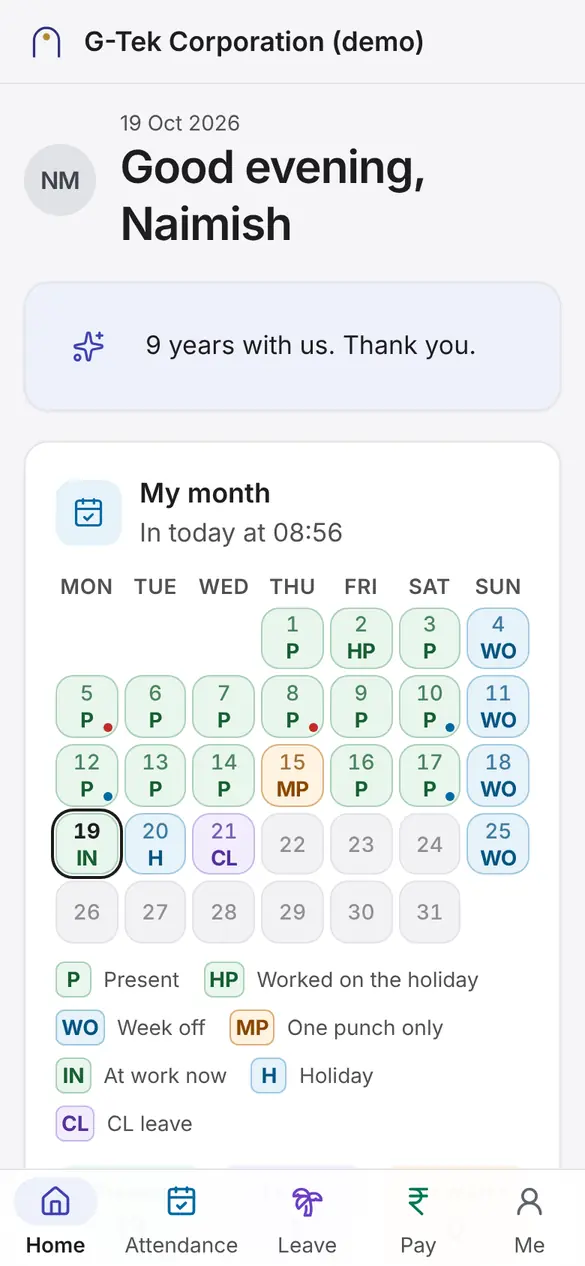
The bar at the bottom is always there: Home, Attendance, Leave, Pay and Me.
Home
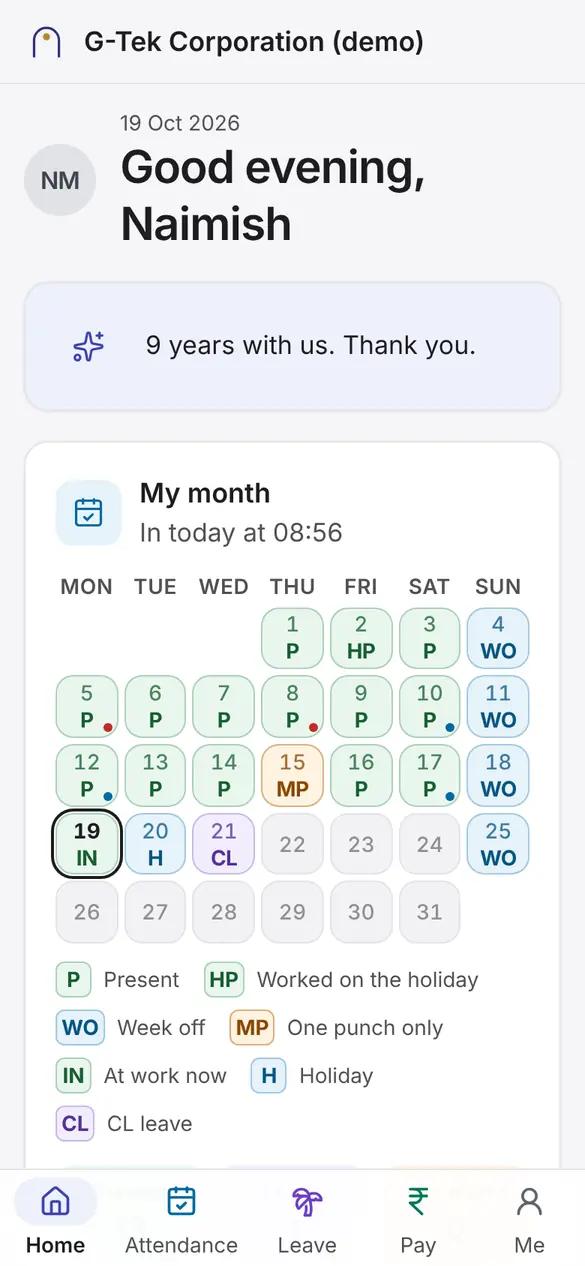
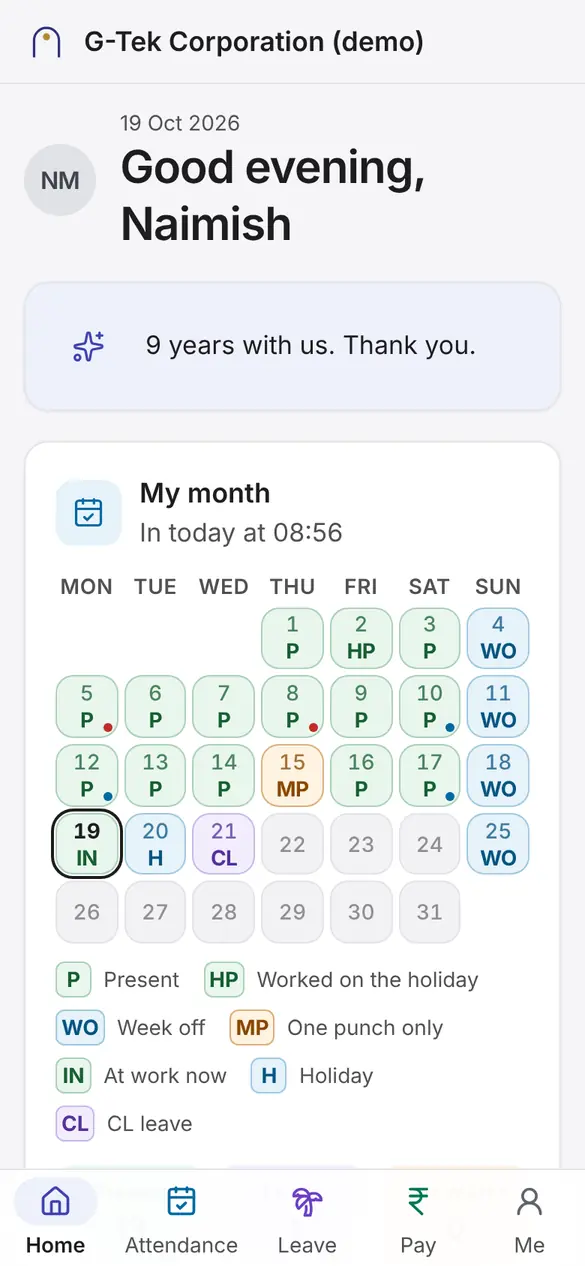
1 of 3My month shows each day: present, week off, holiday, leave, one punch only. Today has a ring.
Payroll
1 of 4Tap Pay in the bottom bar.
Leave
1 of 4Tap Leave in the bottom bar.
Attendance
1 of 5Tap Attendance in the bottom bar.
Payroll
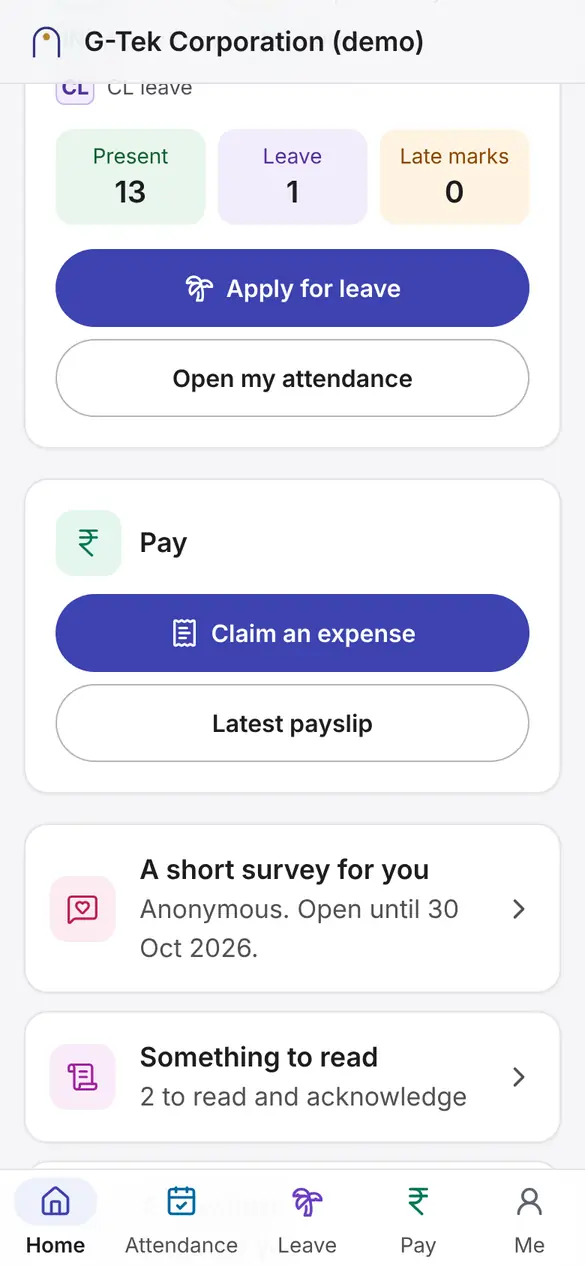
1 of 4On Home, tap Claim an expense.
इस्तेमाल का तरीका
असली स्क्रीन पर, एक-एक स्टेप करके। मालिक, HR और पेरोल वाले लैपटॉप पर काम करते हैं; सुपरवाइज़र और कर्मचारी अपने फ़ोन पर।
नमूने का डेटा। इन स्क्रीन पर हर नाम, कोड और रकम बनावटी है, नमूने की कंपनी "G-Tek Corporation (demo)" से।
लैपटॉप पर स्टाफ़ की स्क्रीन अंग्रेज़ी में हैं, इसलिए वहाँ बटन के नाम अंग्रेज़ी में लिखे हैं। फ़ोन की स्क्रीन आपकी भाषा में हैं।
फ़ोन वाले काम अपने-आप चलते हैं: गोल निशान बताता है कि कहाँ टैप करना है। लैपटॉप वाले काम में किसी स्टेप पर क्लिक करें, स्क्रीन का वह हिस्सा चमकेगा।
भाग 1 लैपटॉपफ़ोन
स्टाफ़ लैपटॉप पर काम के ईमेल और पासवर्ड से साइन इन करता है। कर्मचारी अपने फ़ोन पर कर्मचारी कोड से साइन इन करते हैं।
साइन इन
नया कंप्यूटर है और साइन इन धीमा है? Trust this browser दबाएँ: आपके ईमेल पर एक लिंक आएगा।
आपका खाता
जो भी वेतन देखते हैं, उनके लिए। पासवर्ड के बाद ऐप आपके फ़ोन के एक ऐप से कोड माँगेगा।
इसी पेज पर पासवर्ड बदल सकते हैं: कम से कम 10 अक्षर।
साइन इन
साझा फ़ोन या कियोस्क है? छपे कोड वाले लिंक के नीचे का लिंक इस्तेमाल करें।
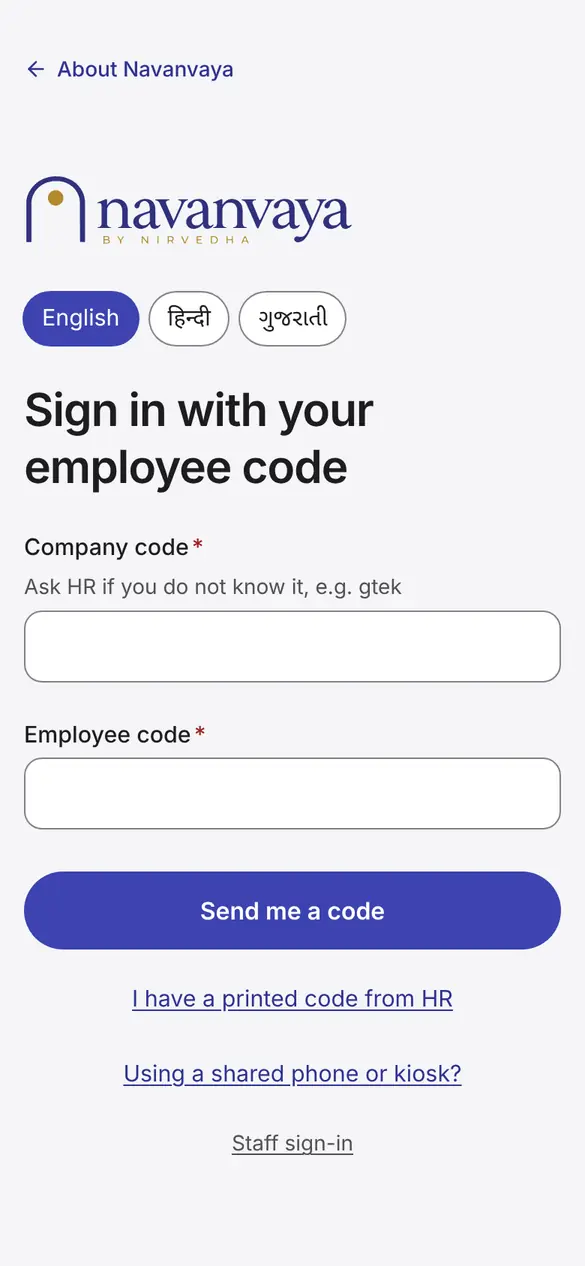
6 में से 1ऊपर अपनी भाषा चुनें: English, हिन्दी या ગુજરાતી।
भाषा
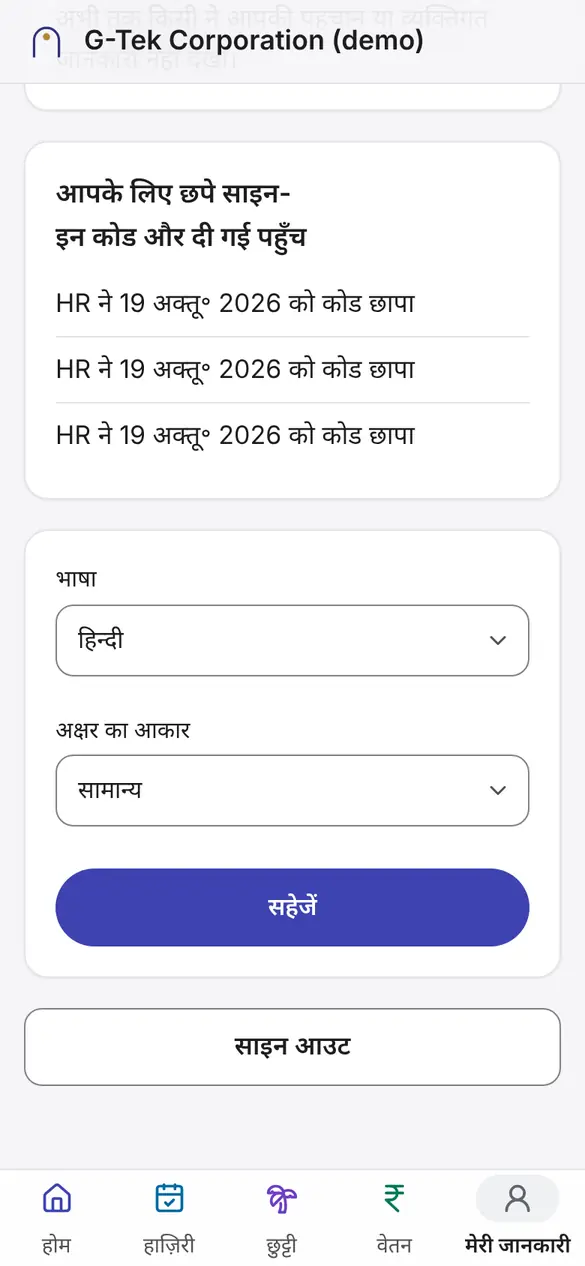
3 में से 1नीचे की पट्टी में मेरी जानकारी पर टैप करें।
भाग 2 लैपटॉप
आपका होम पेज बताता है कि आज आपको क्या देखना है। हर लाइन सीधे उस काम पर ले जाती है।
होम
मंज़ूरी
रिपोर्ट
हर आँकड़ा रिकॉर्ड से आता है। कुछ भी हाथ से नहीं लिखा जाता।
भाग 3 लैपटॉप
हर व्यक्ति की जानकारी एक बार भरी जाती है। पत्र, रजिस्टर और वेतन पर्ची उसी रिकॉर्ड से बनते हैं।
होम
लोग
ऊपर के सर्च बॉक्स से किसी भी पेज से किसी को भी ढूँढें (Ctrl K)।
लोग
दस्तावेज़
दस्तावेज़
जारी पत्र कभी नहीं बदलता। गलत हो तो Void this letter इस्तेमाल करें।
हाज़िरी
नियमों पर तारीख़ होती है: पिछले महीने अपने समय के नियमों पर ही रहते हैं।
हाज़िरी
सेटिंग्स
बिना चेन के कुछ भी मंज़ूर नहीं होता। बंद किया गया अनुरोध भेजा नहीं जा सकता।
भाग 4 लैपटॉप
हर महीना एक ही रास्ते से चलता है: हाज़िरी बंद, हिसाब, जाँच, मंज़ूरी, बैंक फ़ाइल, भुगतान दर्ज, लॉक।
वेतन
वेतन
शुरुआत का महीना वह पहला महीना है जिसका वेतन Navanvaya से दिया जाता है। उससे पहले के महीने ट्रायल हैं: सलाहकार के आँकड़ों से मिलाए जाते हैं, भुगतान नहीं होता।
कानूनी कटौतियाँ रुपये-रुपये मिलनी चाहिए; बाकी में ₹1 का फ़र्क चल सकता है।
वेतन
वेतन
वेतन
वेतन
महीना लॉक होने के बाद सुधार अगले महीने बकाया के रूप में मिलता है।
वेतन
वेतन
महीने का भुगतान होने पर कर्मचारी अपनी वेतन पर्ची फ़ोन पर देखते हैं।
वेतन
बैंक के फ़ॉर्मेट Rates and rules → Bank files में हैं।
हाज़िरी
भाग 5 फ़ोन
सुपरवाइज़र अपनी टीम की छुट्टी, हाज़िरी सुधार और खर्च के दावों पर फ़ैसला करते हैं। ज़्यादा देर रुका अनुरोध HR के पास भी जाता है।
मंज़ूरी
अपना भेजा अनुरोध आप ख़ुद कभी मंज़ूर नहीं कर सकते।
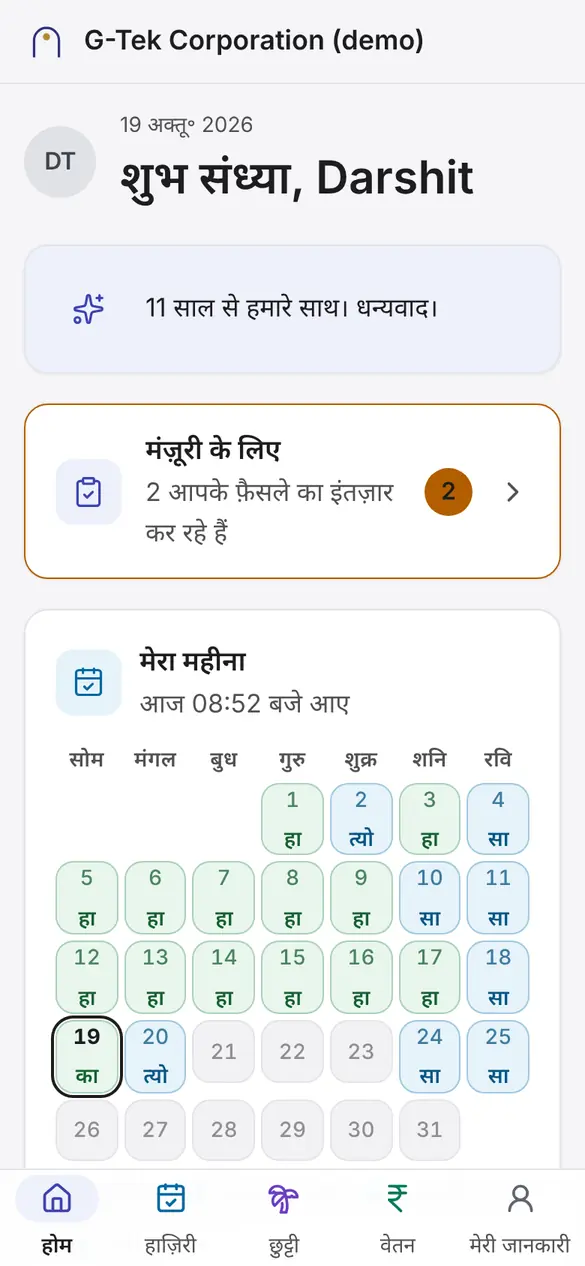
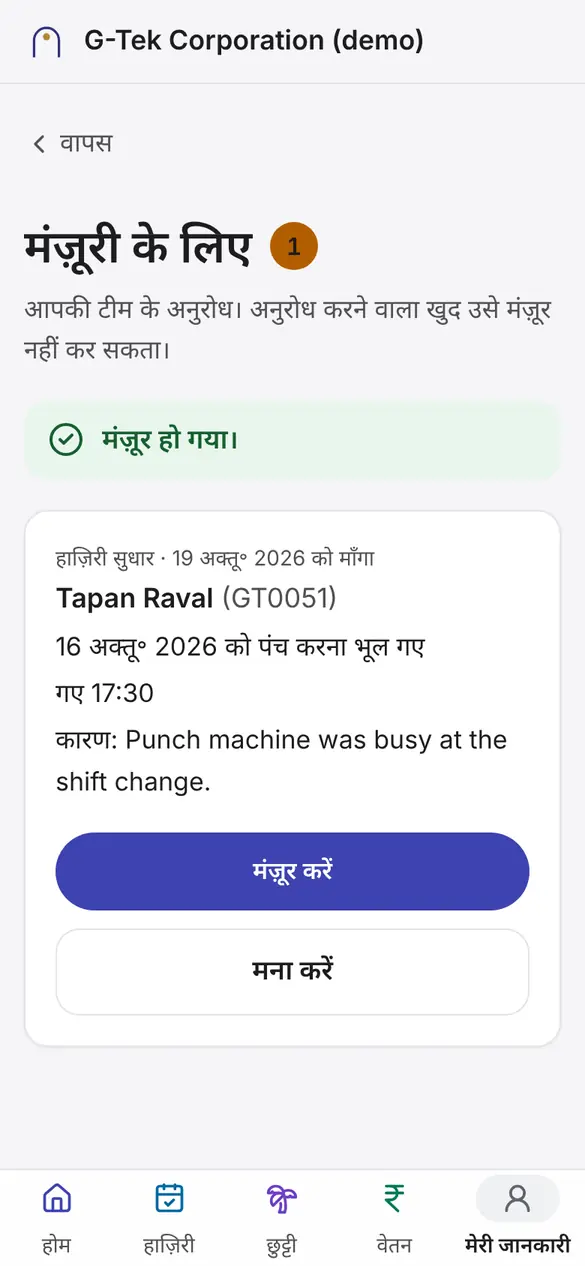
7 में से 1होम पर मंज़ूरी के लिए पर टैप करें। संख्या बताती है कि कितने अनुरोध रुके हैं।
भाग 6 फ़ोन
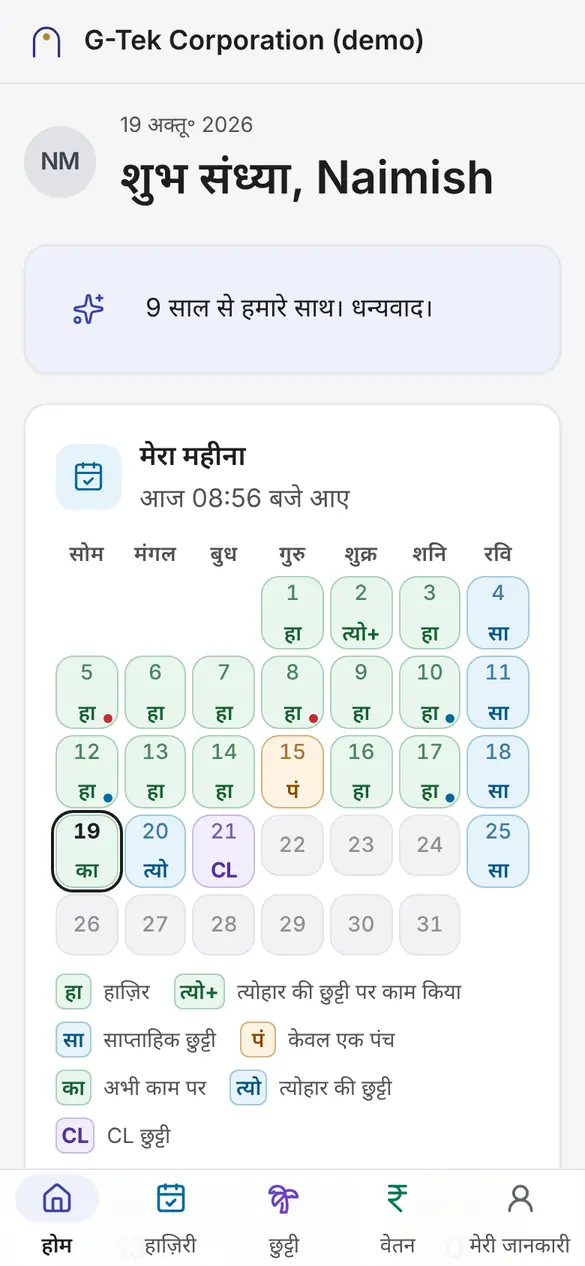
नीचे की पट्टी हमेशा रहती है: होम, हाज़िरी, छुट्टी, वेतन और मेरी जानकारी।
होम
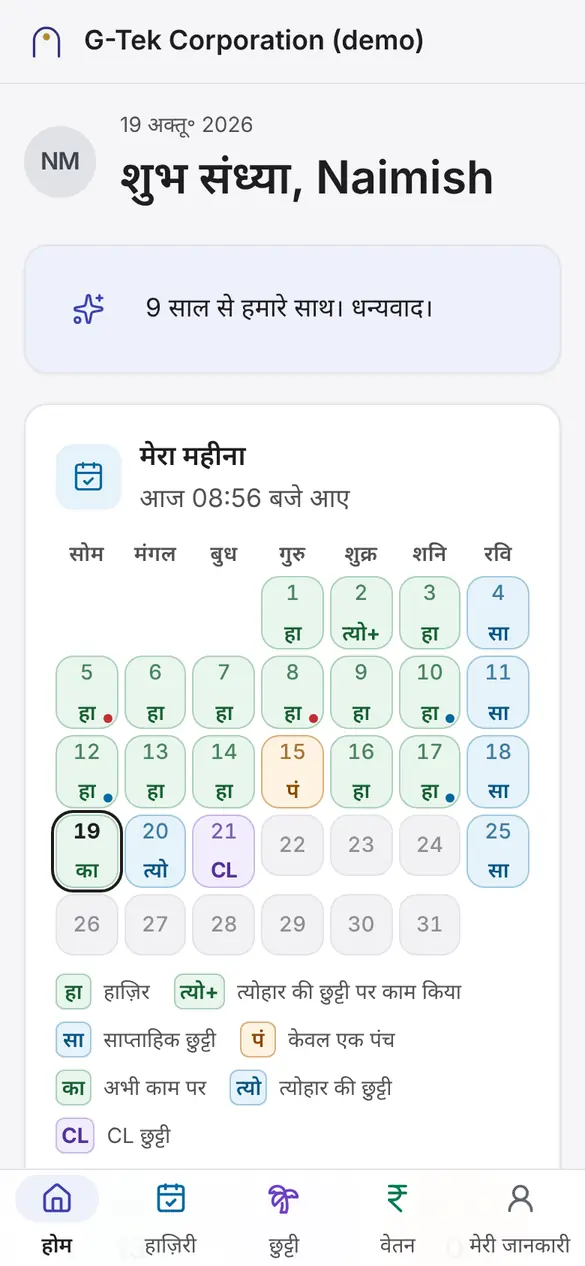
3 में से 1मेरा महीना हर दिन दिखाता है: हाज़िर, साप्ताहिक छुट्टी, त्योहार, छुट्टी, सिर्फ़ एक पंच। आज के दिन पर घेरा है।
वेतन
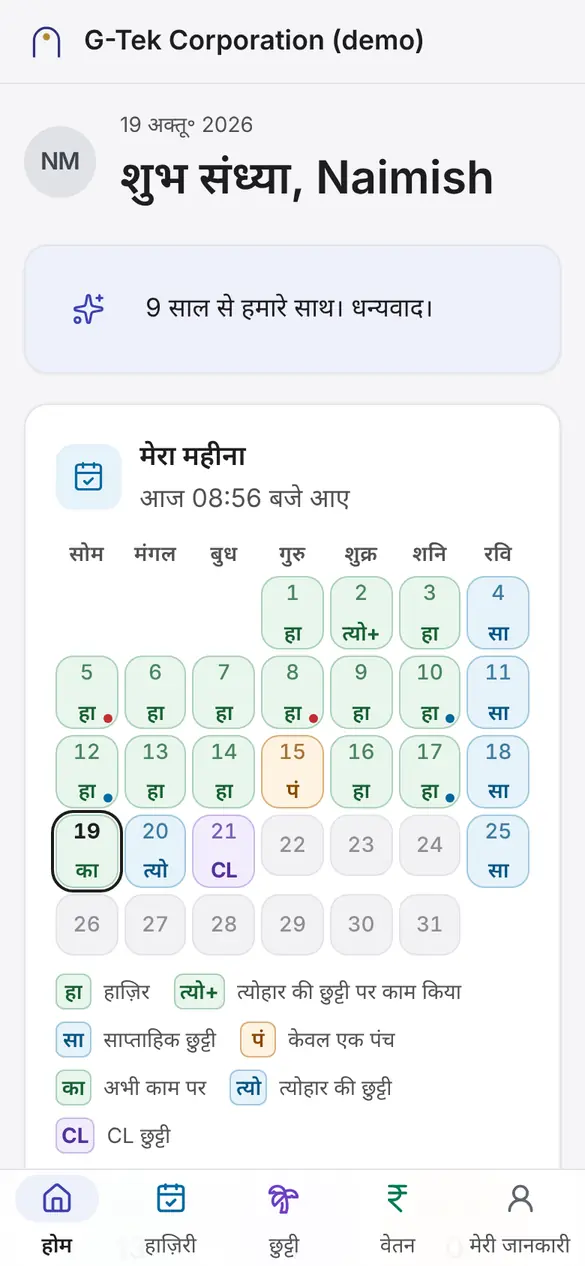
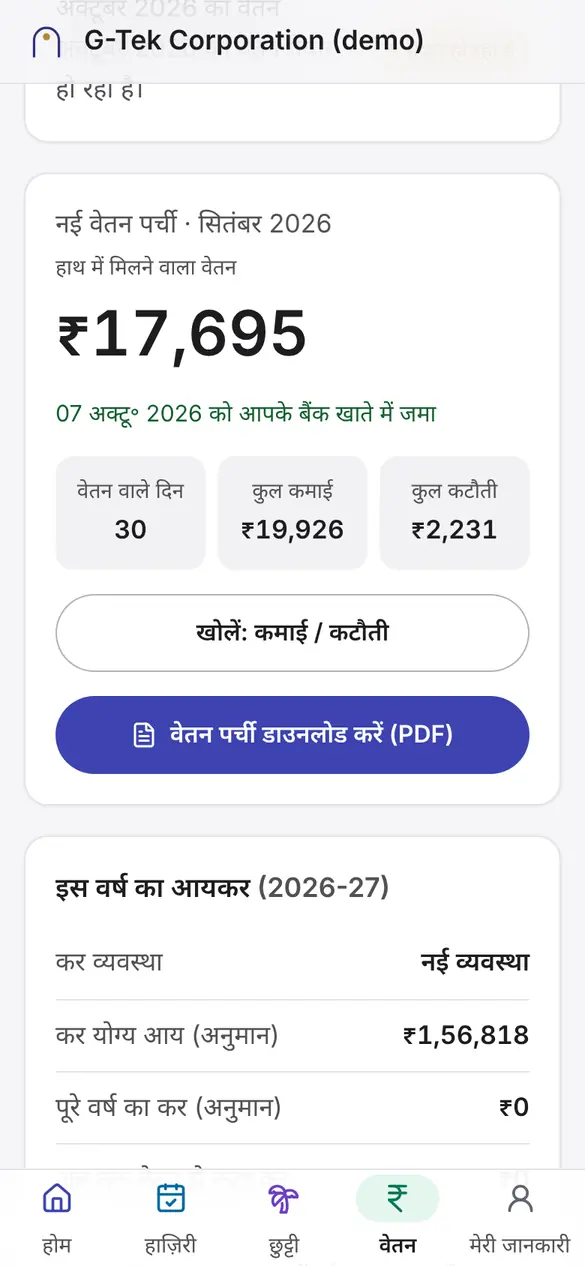
4 में से 1नीचे की पट्टी में वेतन पर टैप करें।
छुट्टी
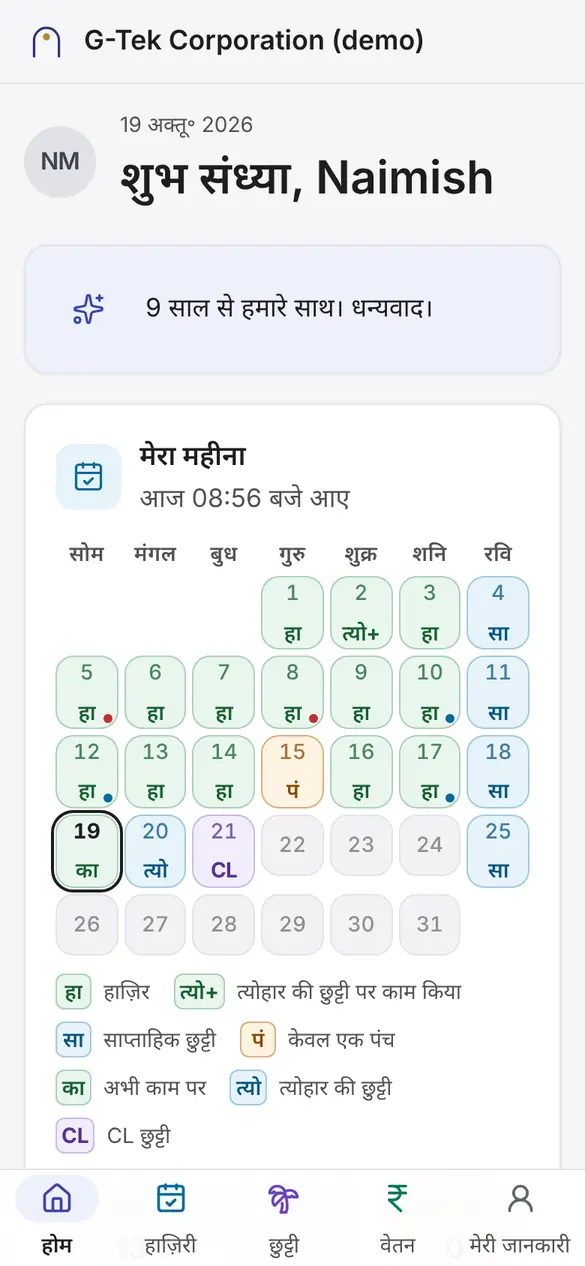
4 में से 1नीचे की पट्टी में छुट्टी पर टैप करें।
हाज़िरी
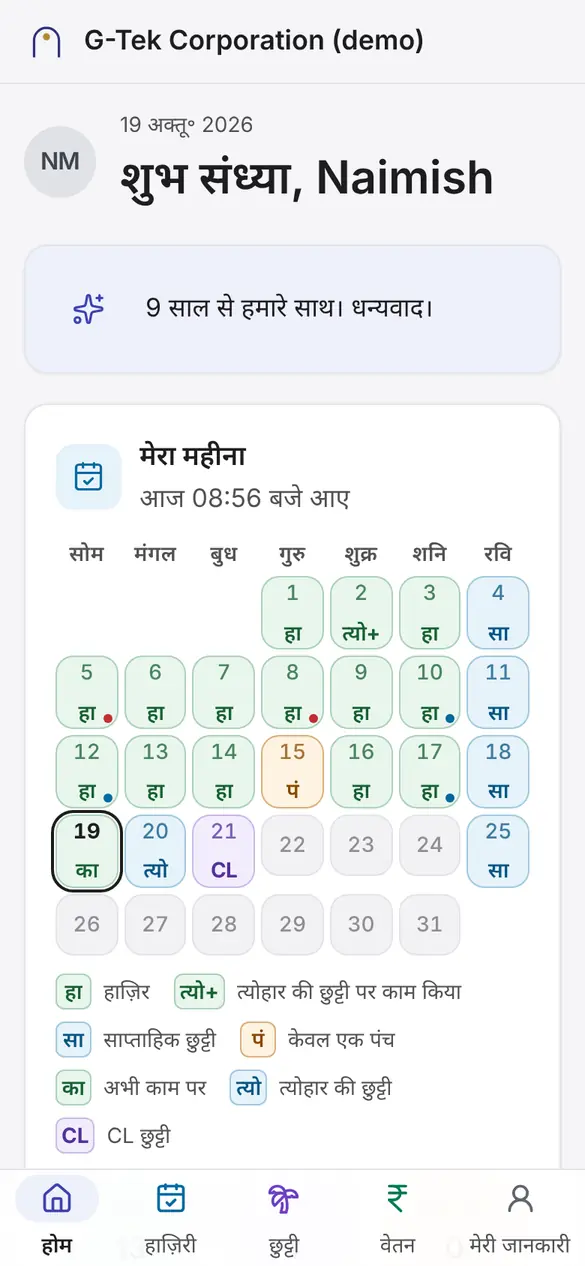
5 में से 1नीचे की पट्टी में हाज़िरी पर टैप करें।
वेतन
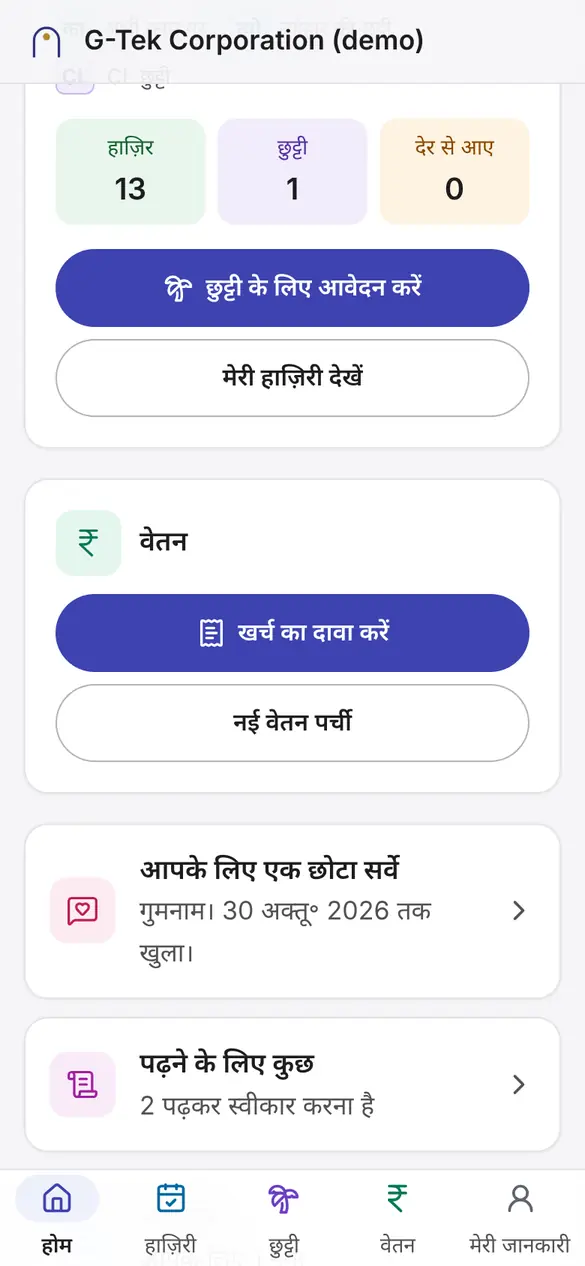
4 में से 1होम पर खर्च का दावा करें पर टैप करें।
વાપરવાની રીત
સાચી સ્ક્રીન પર, એક-એક સ્ટેપ કરીને. માલિક, HR અને પગાર વિભાગ લેપટોપ પર કામ કરે છે; સુપરવાઇઝર અને કર્મચારી પોતાના ફોન પર.
નમૂનાનો ડેટા. આ સ્ક્રીન પરનાં બધાં નામ, કોડ અને રકમ બનાવટી છે, નમૂનાની કંપની "G-Tek Corporation (demo)"માંથી.
લેપટોપ પર સ્ટાફની સ્ક્રીન અંગ્રેજીમાં છે, એટલે ત્યાં બટનનાં નામ અંગ્રેજીમાં લખ્યાં છે. ફોનની સ્ક્રીન તમારી ભાષામાં છે.
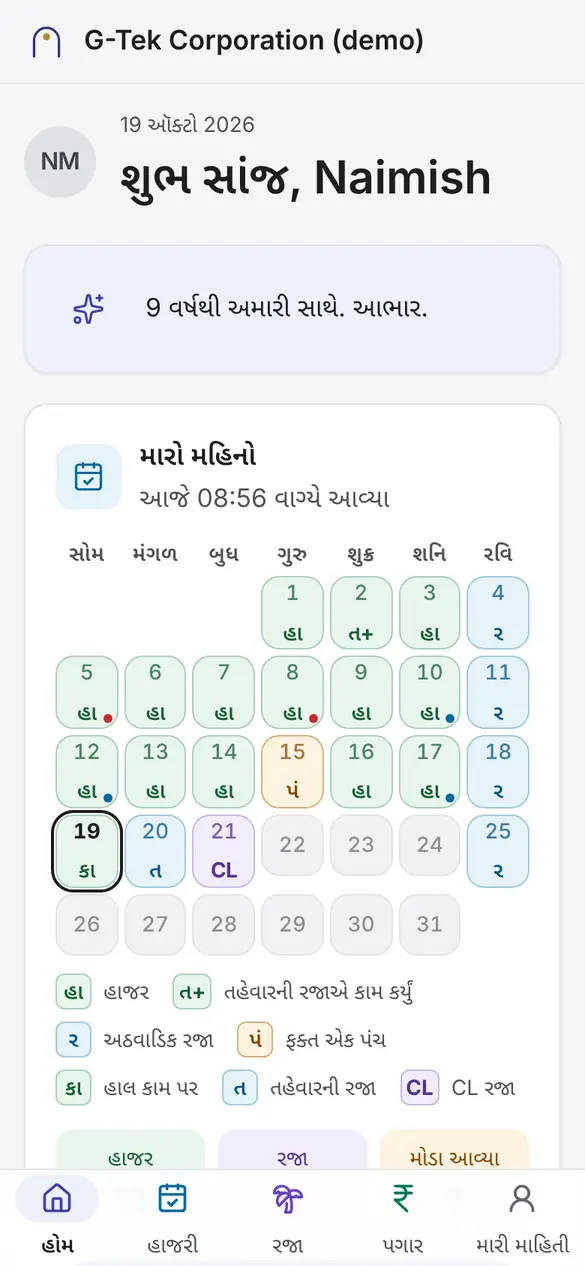
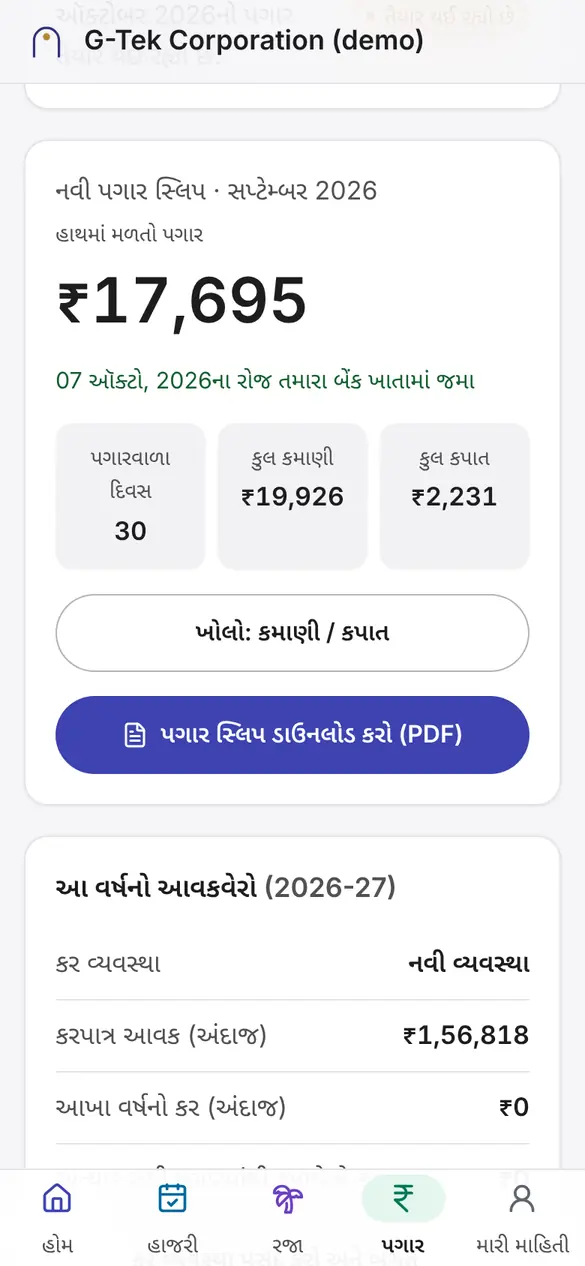
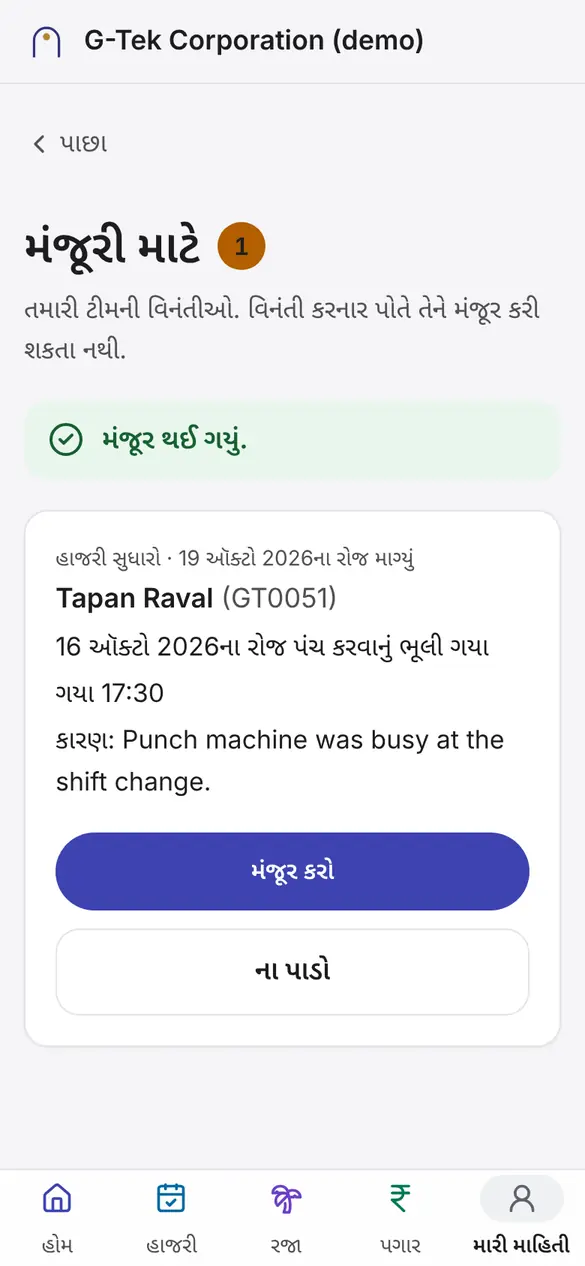
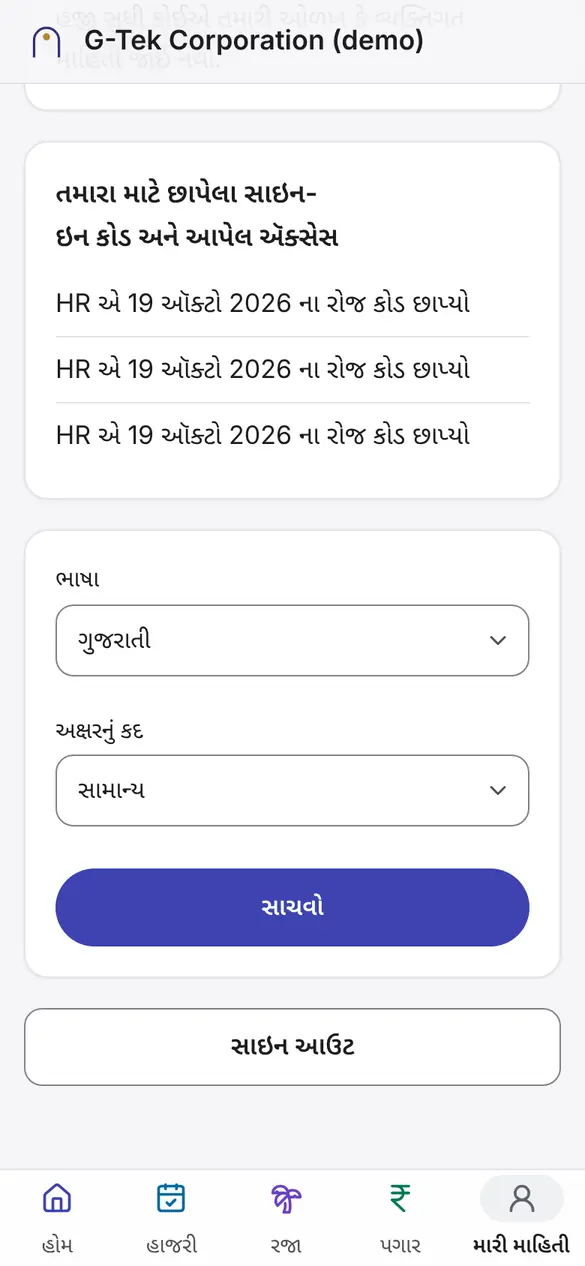
ફોનનાં કામ જાતે ચાલે છે: ગોળ નિશાન બતાવે છે કે ક્યાં ટેપ કરવું. લેપટોપનાં કામમાં કોઈ સ્ટેપ પર ક્લિક કરો, સ્ક્રીનનો તે ભાગ ચમકશે.
ભાગ 1 લેપટોપફોન
સ્ટાફ લેપટોપ પર કામના ઈમેલ અને પાસવર્ડથી સાઇન ઇન કરે છે. કર્મચારી પોતાના ફોન પર કર્મચારી કોડથી સાઇન ઇન કરે છે.
સાઇન ઇન
નવું કમ્પ્યુટર છે અને સાઇન ઇન ધીમું છે? Trust this browser દબાવો: તમારા ઈમેલ પર એક લિંક આવશે.
તમારું ખાતું
જે કોઈ પગાર જુએ છે તેમના માટે. પાસવર્ડ પછી ઍપ તમારા ફોનની એક ઍપમાંથી કોડ માગશે.
આ જ પેજ પર પાસવર્ડ બદલી શકો છો: ઓછામાં ઓછા 10 અક્ષર.
સાઇન ઇન
શેર કરેલો ફોન કે કિઓસ્ક છે? છાપેલા કોડવાળી લિંકની નીચેની લિંક વાપરો.
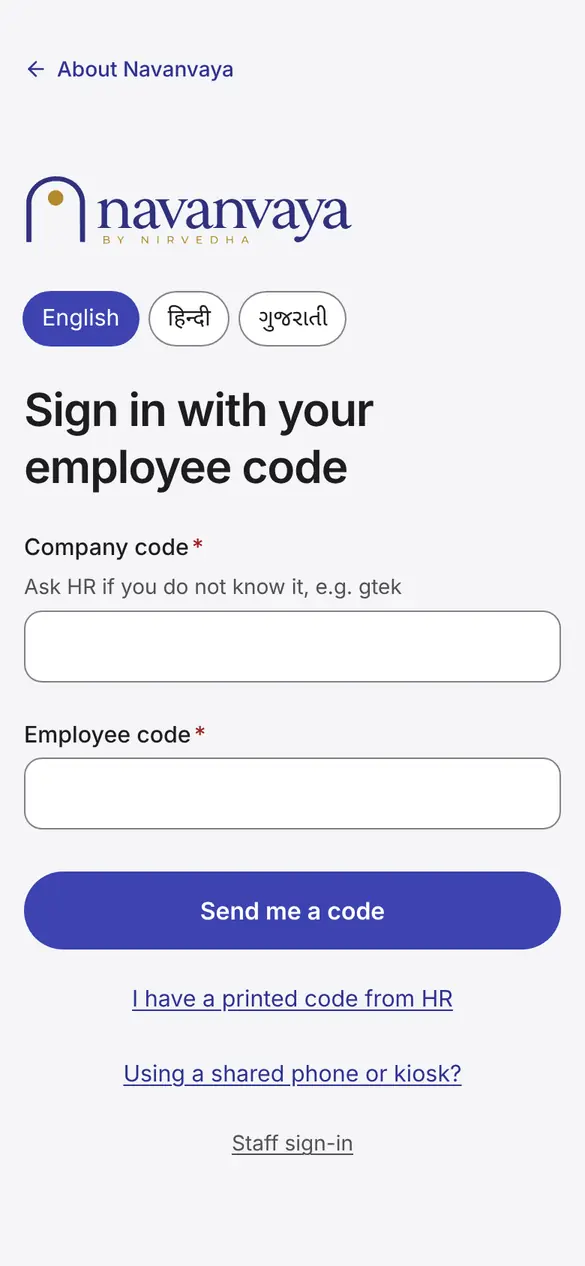
6માંથી 1ઉપર તમારી ભાષા પસંદ કરો: English, हिन्दी કે ગુજરાતી.
ભાષા
3માંથી 1નીચેની પટ્ટીમાં મારી માહિતી પર ટેપ કરો.
ભાગ 2 લેપટોપ
તમારું હોમ પેજ બતાવે છે કે આજે તમારે શું જોવાનું છે. દરેક લીટી સીધી તે કામ પર લઈ જાય છે.
હોમ
મંજૂરી
રિપોર્ટ
દરેક આંકડો રેકોર્ડમાંથી આવે છે. કંઈ પણ હાથે લખાતું નથી.
ભાગ 3 લેપટોપ
દરેક વ્યક્તિની માહિતી એક જ વાર ભરાય છે. પત્રો, રજિસ્ટર અને પગાર સ્લિપ એ જ રેકોર્ડમાંથી બને છે.
હોમ
લોકો
ઉપરના સર્ચ બૉક્સથી કોઈ પણ પેજ પરથી કોઈને પણ શોધો (Ctrl K).
લોકો
દસ્તાવેજ
દસ્તાવેજ
આપેલો પત્ર ક્યારેય બદલાતો નથી. ખોટો હોય તો Void this letter વાપરો.
હાજરી
નિયમો પર તારીખ હોય છે: પાછલા મહિના પોતાના સમયના નિયમો પર જ રહે છે.
હાજરી
સેટિંગ્સ
ચેઇન વગર કંઈ મંજૂર થતું નથી. બંધ કરેલી વિનંતી મોકલી શકાતી નથી.
ભાગ 4 લેપટોપ
દર મહિને એક જ રસ્તો: હાજરી બંધ, ગણતરી, તપાસ, મંજૂરી, બૅન્ક ફાઇલ, ચુકવણી નોંધ, લૉક.
પગાર
પગાર
શરૂઆતનો મહિનો એ પહેલો મહિનો છે જેનો પગાર Navanvayaથી અપાય છે. તે પહેલાંના મહિના ટ્રાયલ છે: સલાહકારના આંકડા સાથે સરખાવાય છે, ચુકવણી થતી નથી.
કાયદાકીય કપાત રૂપિયે-રૂપિયે મળવી જોઈએ; બાકીમાં ₹1નો ફરક ચાલે.
પગાર
પગાર
પગાર
પગાર
મહિનો લૉક થયા પછી સુધારો આવતા મહિને બાકી રકમ તરીકે મળે છે.
પગાર
પગાર
મહિનાની ચુકવણી થાય પછી કર્મચારી પોતાની પગાર સ્લિપ ફોન પર જુએ છે.
પગાર
બૅન્કનાં ફૉર્મેટ Rates and rules → Bank filesમાં છે.
હાજરી
ભાગ 5 ફોન
સુપરવાઇઝર પોતાની ટીમની રજા, હાજરી સુધારા અને ખર્ચના દાવા પર નિર્ણય લે છે. વધુ સમય રોકાયેલી વિનંતી HR પાસે પણ જાય છે.
મંજૂરી
તમે પોતે મોકલેલી વિનંતી ક્યારેય જાતે મંજૂર કરી શકતા નથી.
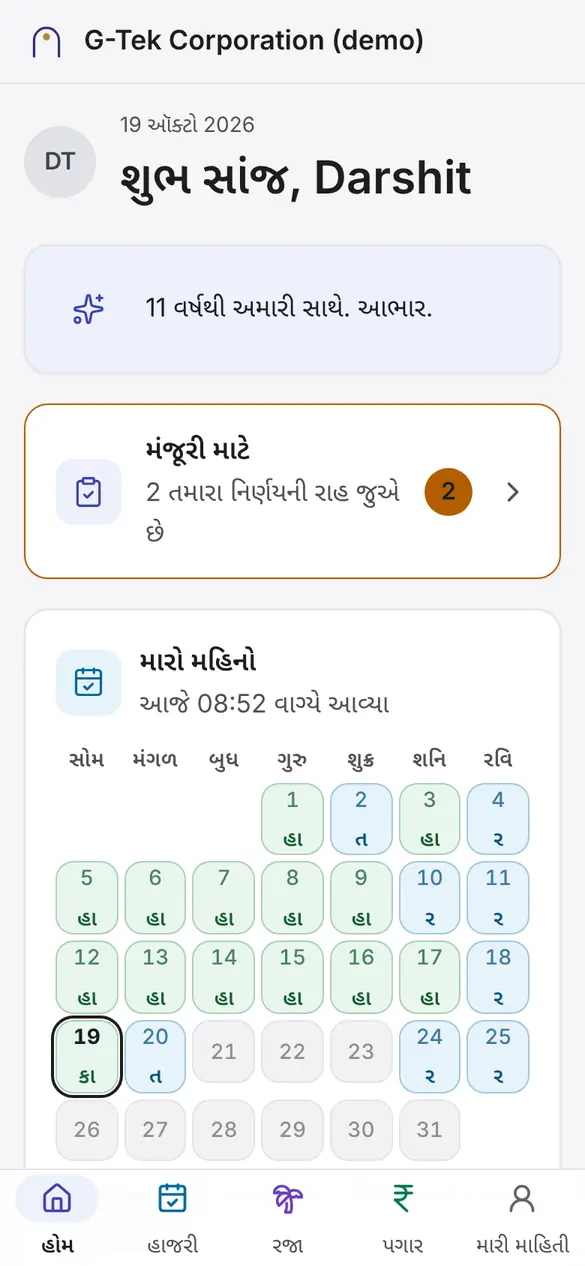
7માંથી 1હોમ પર મંજૂરી માટે પર ટેપ કરો. આંકડો બતાવે છે કે કેટલી વિનંતીઓ રોકાઈ છે.
ભાગ 6 ફોન
નીચેની પટ્ટી હંમેશાં રહે છે: હોમ, હાજરી, રજા, પગાર અને મારી માહિતી.
હોમ
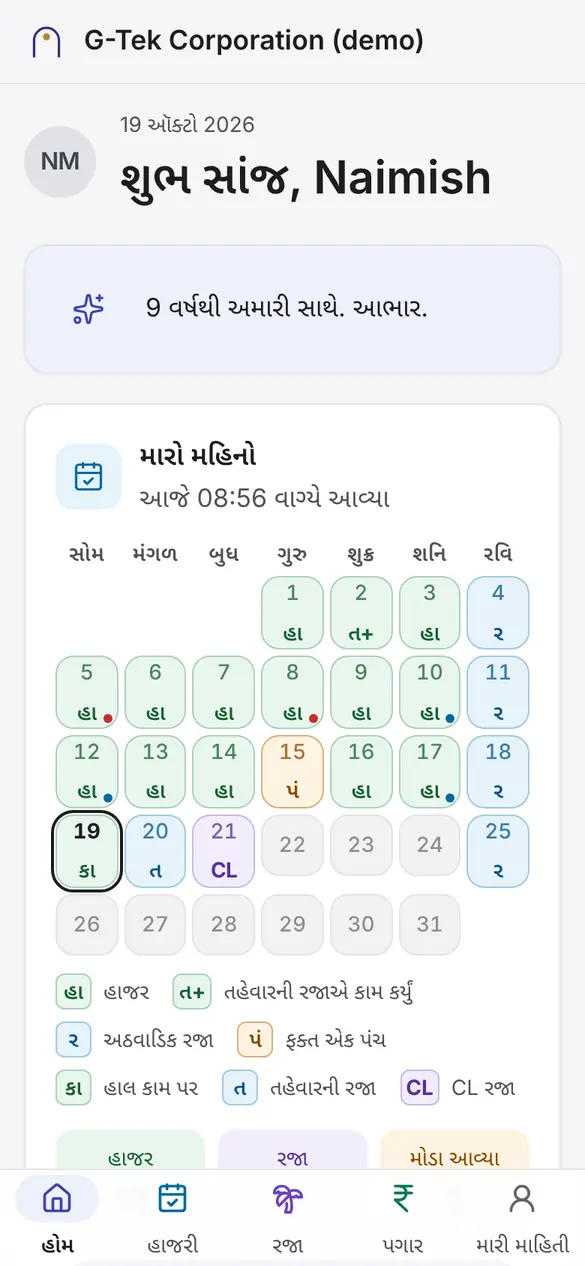
3માંથી 1મારો મહિનો દરેક દિવસ બતાવે છે: હાજર, અઠવાડિક રજા, તહેવાર, રજા, ફક્ત એક પંચ. આજના દિવસ પર ગોળ છે.
પગાર
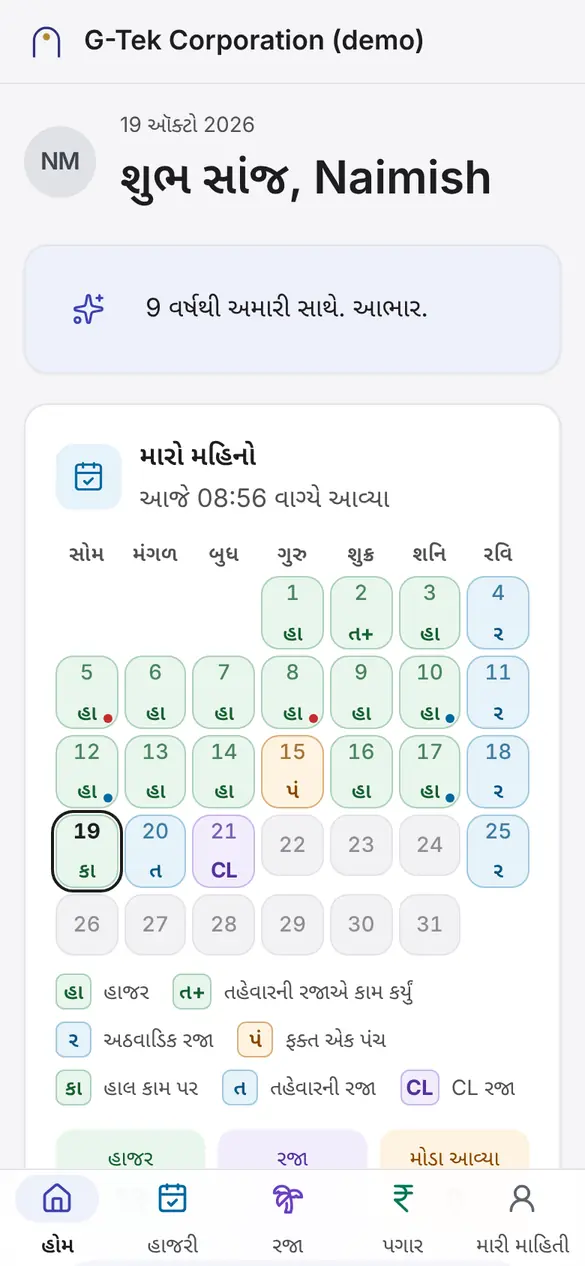
4માંથી 1નીચેની પટ્ટીમાં પગાર પર ટેપ કરો.
રજા
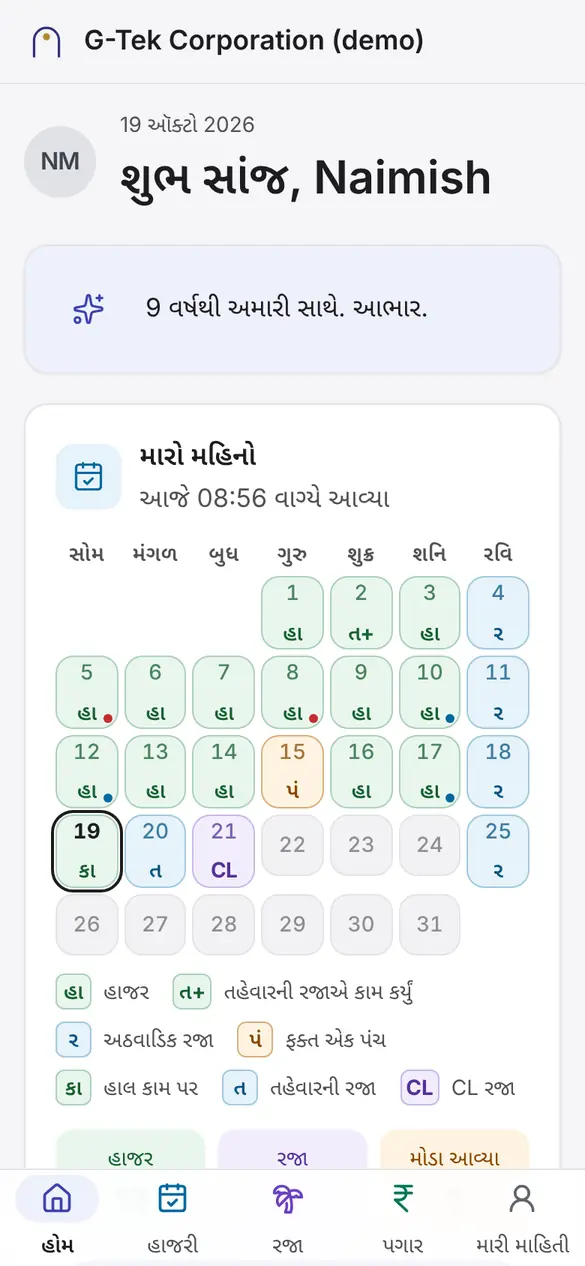
4માંથી 1નીચેની પટ્ટીમાં રજા પર ટેપ કરો.
હાજરી
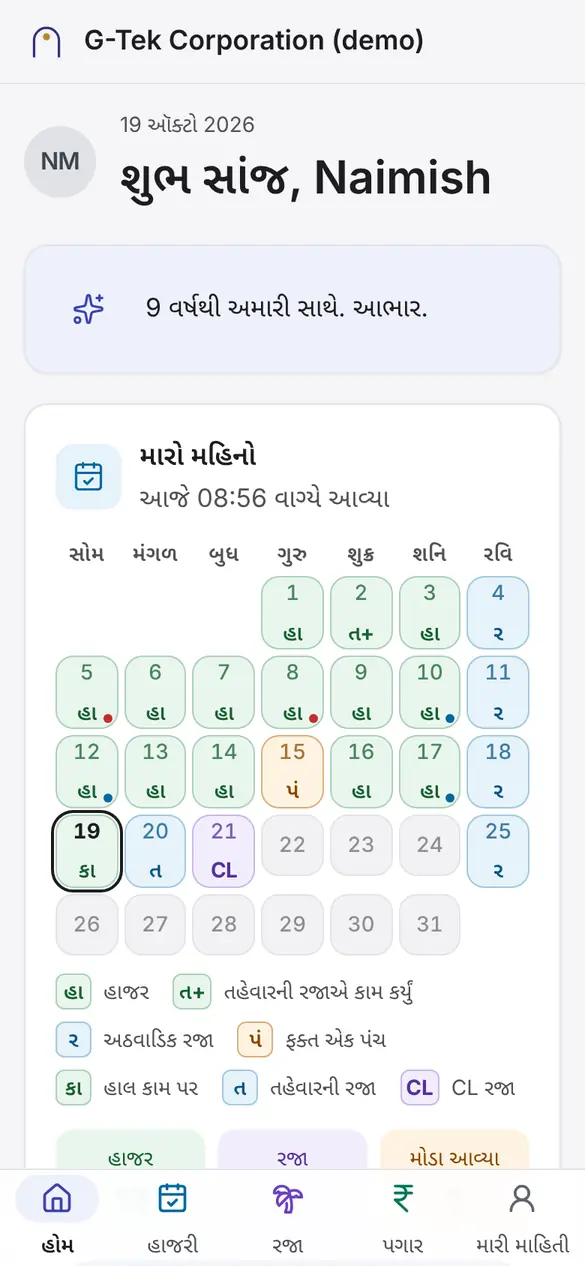
5માંથી 1નીચેની પટ્ટીમાં હાજરી પર ટેપ કરો.
પગાર
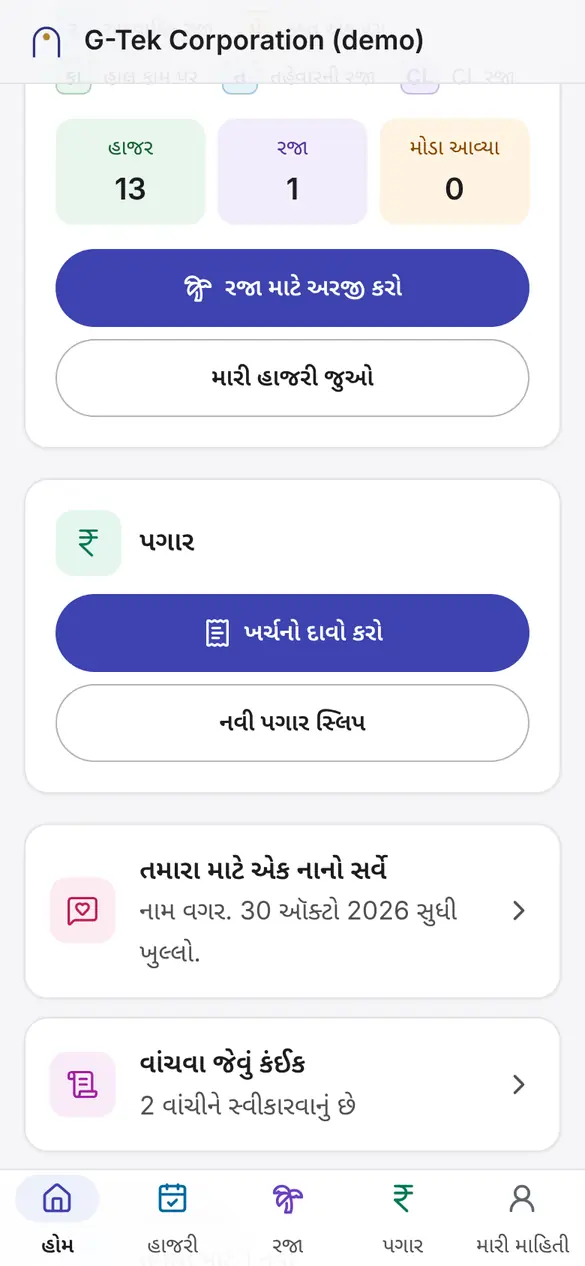
4માંથી 1હોમ પર ખર્ચનો દાવો કરો પર ટેપ કરો.